Configure SSH Keys authentication with PuTTY
 PuTTY is a popular program for remote access to Linux. Most people authenticate with a username and password, but another feature makes it more convenient for system administrators to log in without spending time entering them.
This article explains how to configure PuTTY to use SSH key authentication for easier login.
Configure PuTTY to use SSH key authentication
Create a private and public key pair
PuTTY is a popular program for remote access to Linux. Most people authenticate with a username and password, but another feature makes it more convenient for system administrators to log in without spending time entering them.
This article explains how to configure PuTTY to use SSH key authentication for easier login.
Configure PuTTY to use SSH key authentication
Create a private and public key pair
-
Download PuTTYgen to create authentication keys from the link below.
http://the.earth.li/~sgtatham/putty/latest/x86/puttygen.exe -
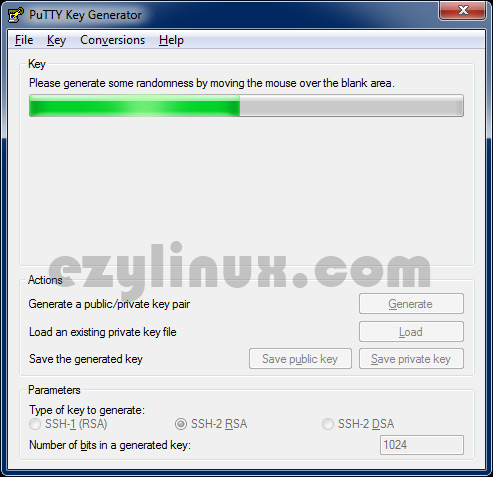
Open PuTTYgen and click “Generate”. Move the mouse over its window so the program can use those events to generate data.
-
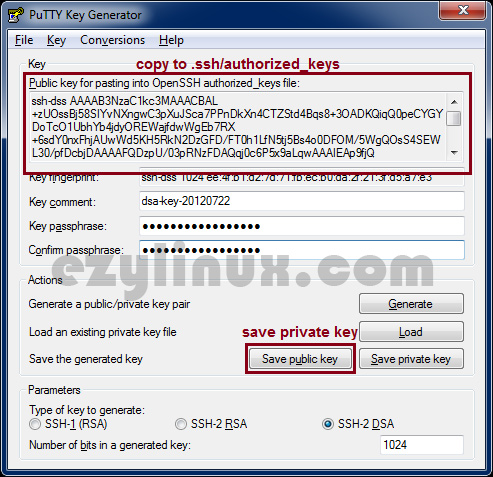
Once generation finishes, copy the key into authorized_keys in the .ssh directory of the user who will use SSH key authentication:
-
Log in as the user who will use SSH key authentication.
-
Enter .ssh with:
[root@ezylinux ~]# cd .ssh -
Add the public key to authorized_keys.
[root@ezylinux ~]# echo "paste public key" >> authorized_keys -
Allow only the file owner to read and write it, to prevent changes to the key.
[root@ezylinux ~]# chmod 600 authorized_keys
-
-
Click “Save public key”.
Configure PuTTY for SSH key authentication
-
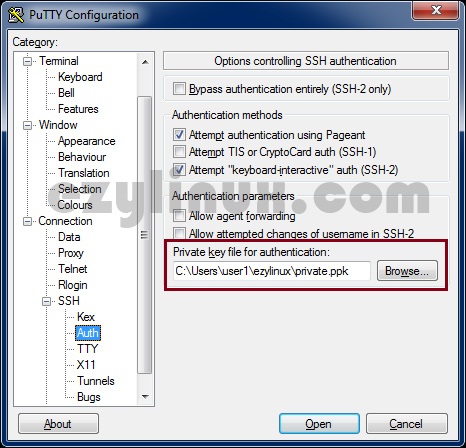
Open PuTTY and go to Connection -> SSH -> Auth. Click Browse and select the public key file saved in the previous step.
-
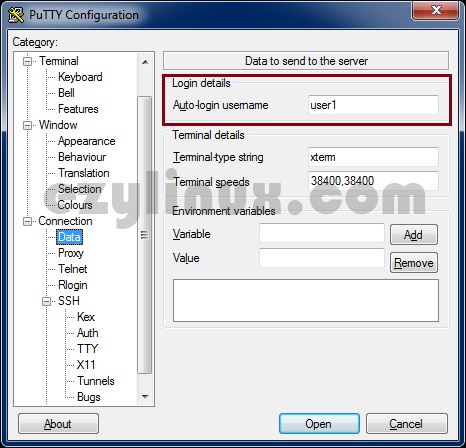
Select Connection -> Data and enter the login user in “Auto-login username”.
-
After entering all the settings, save them for convenience.
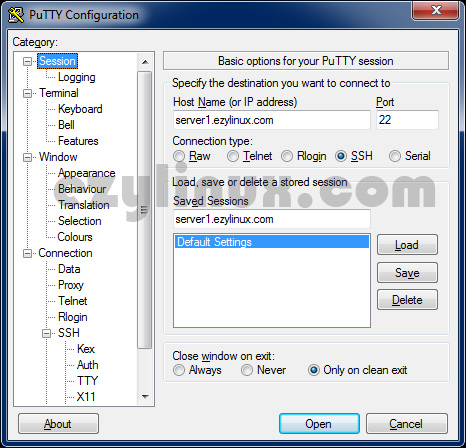
-
Test the connection. Example login output:
Using username "user1".
Authenticating with public key "dsa-key-20120722"
Last login: Sun Jul 22 21:31:38 2012 from ppp-58-8-xx.revip2.asianet.co.th
[user1@ezylinux ~]$