Installing and configuring Zimbra Desktop
To install Zimbra desktop as a mail client in place of Microsoft Outlook, follow these steps:
- Download zimbra desktop from http://www.zimbra.com/downloads/zd-downloads.html
- After downloading, double-click the downloaded file.
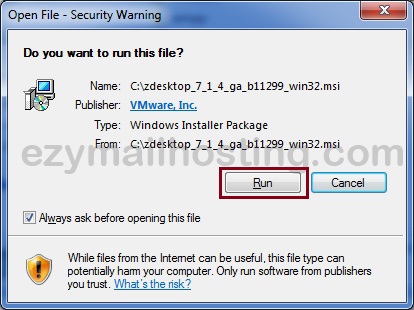
- When Windows displays a security warning, click Run.
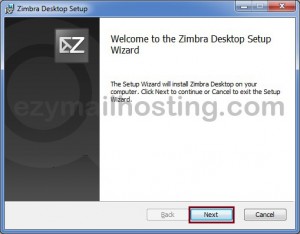
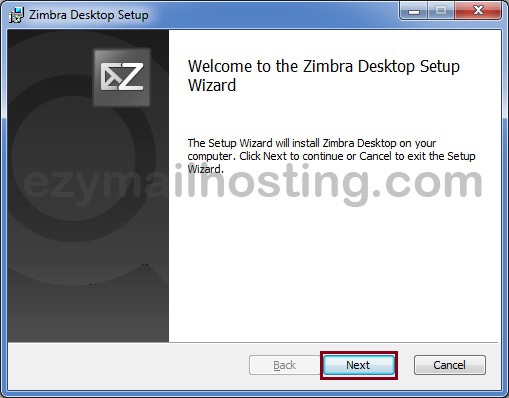
- The Zimbra Desktop installer appears as shown below. Click Next.
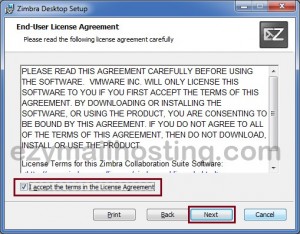
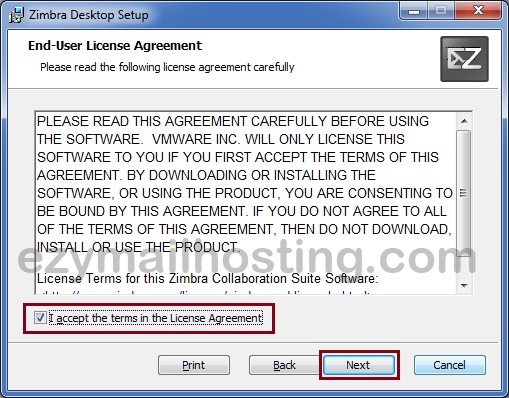
- Select I accept … and click Next.
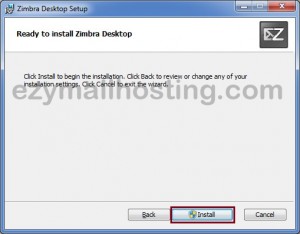
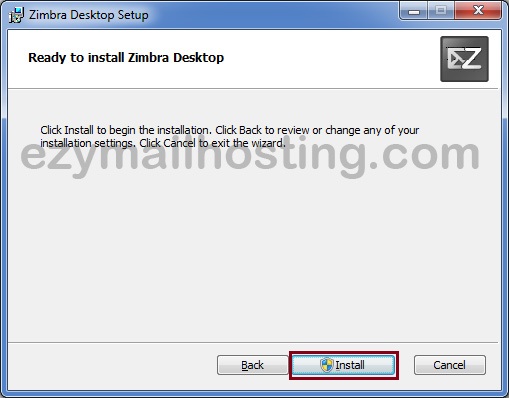
- Click Install.
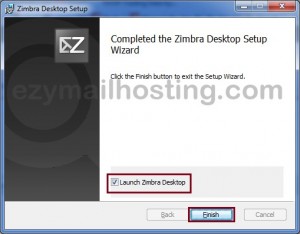
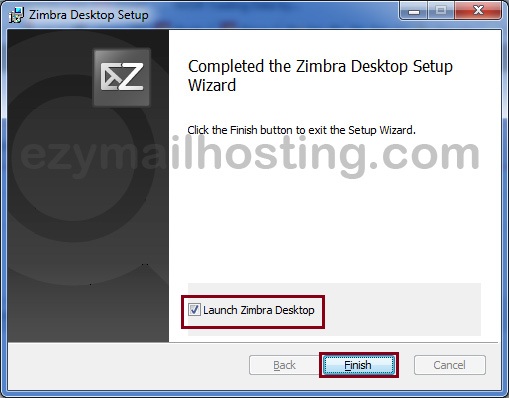
- When installation finishes, the window below appears. Select Lanuch Zimbra Desktop and click Finish.
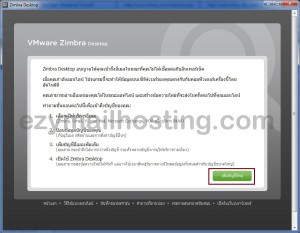
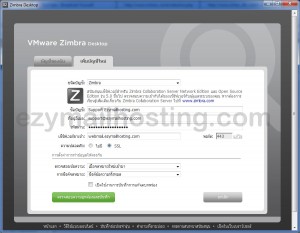
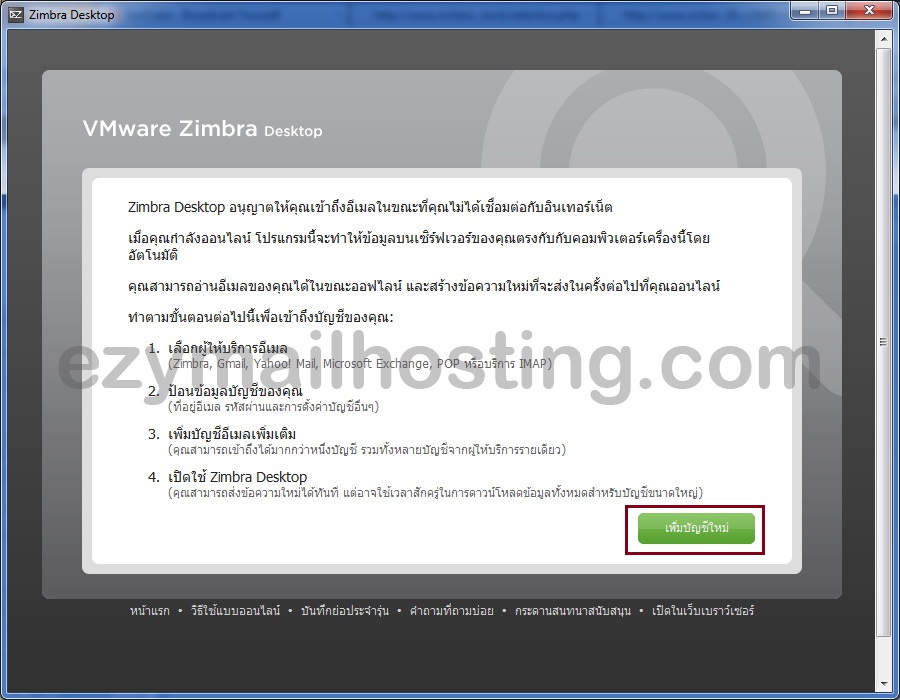
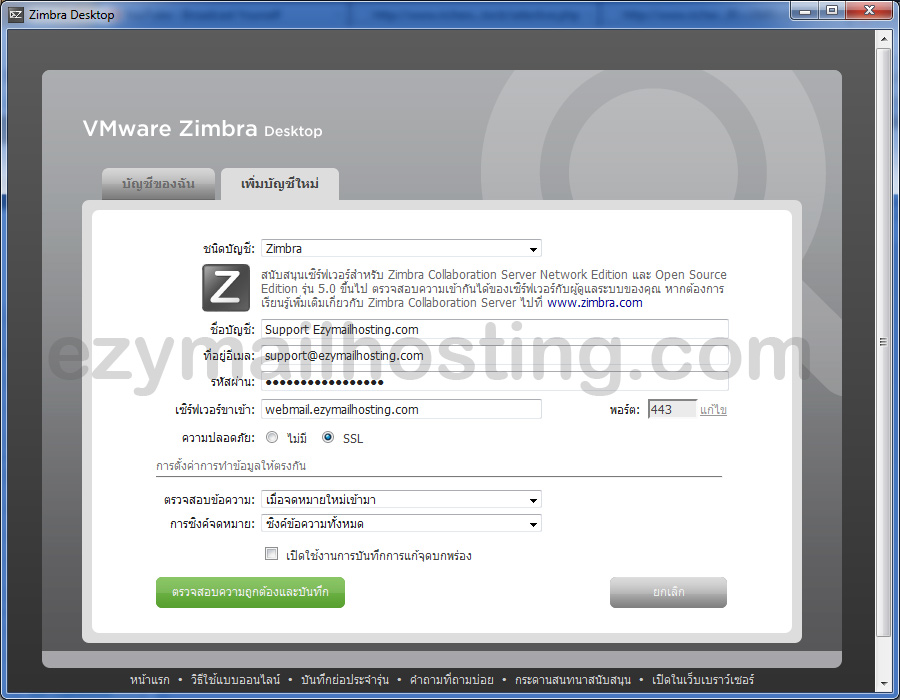
- Zimbra desktop opens. Click Add New Account to add the account you want to use.
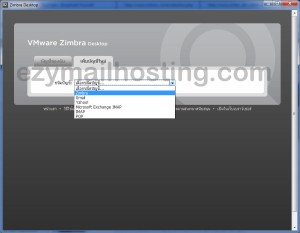
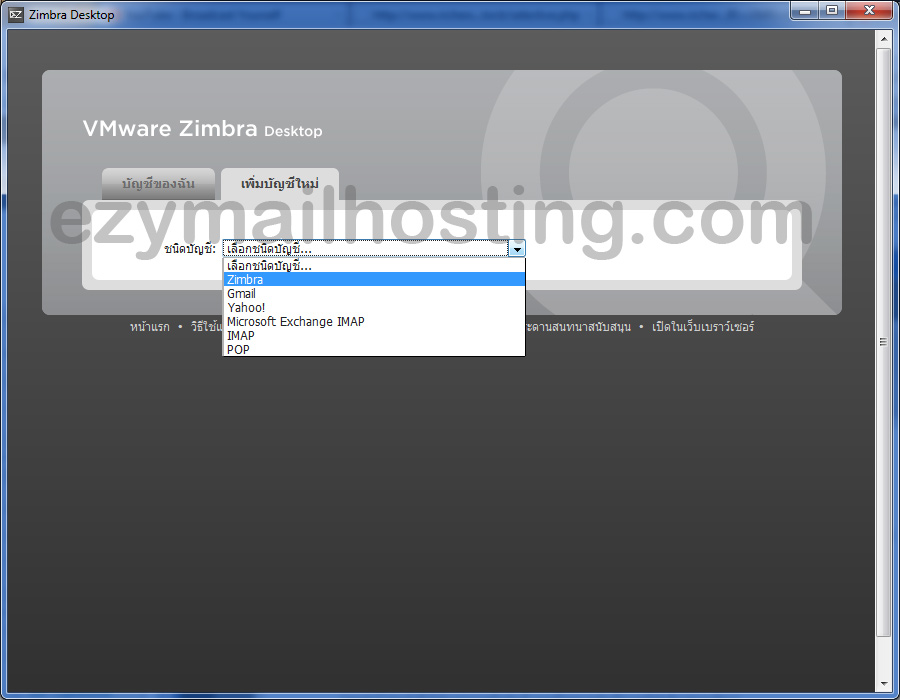
- Select Zimbra as the account type.
- Enter the user details as follows:
- Account Name - the email owner’s name
- Email Address - the email address
- Password - the password
- Incoming Server - enter webmail.ezymailhosting.com
- Security - select SSL
- Click Validate and Save.
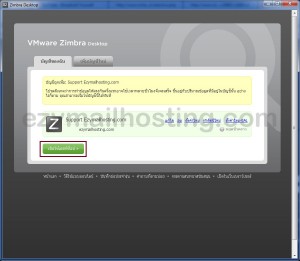
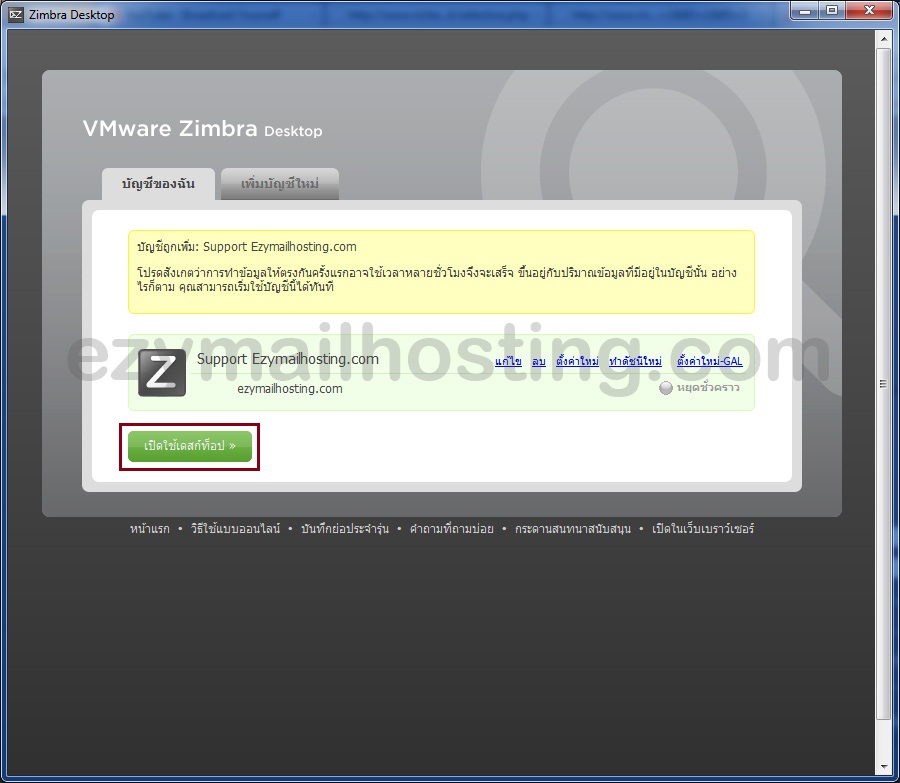
- If user validation succeeds without errors, the window shown below appears. Click Launch Desktop to start using Zimbra Desktop.
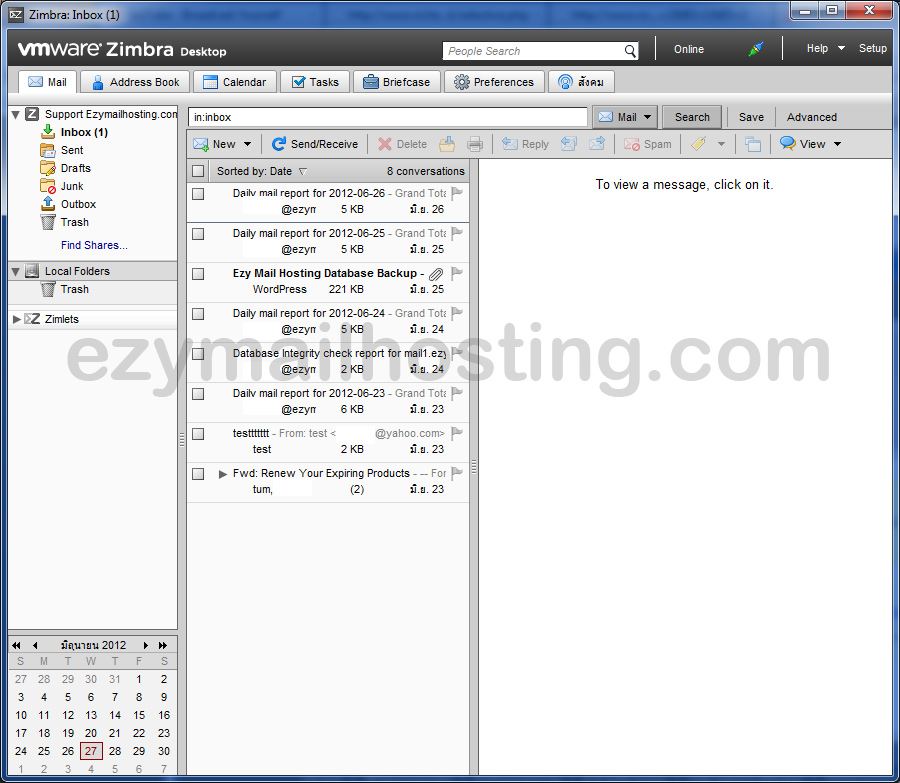
Example Zimbra Desktop screen