With the release of RHEL 7, users need to adapt to a different service manager: systemd replaces SysVinit. It offers several advantages, including parallel operation, mount point handling, and cgroups support.
Since nearly all the commands have changed, I have provided tables comparing SysVinit and systemd so users can find the equivalents of familiar commands.
*** The example service in these tables is named abc.
Service Command
Sysvinit Command
Systemd Command
Start service (does not configure startup at boot)
service abc start
systemctl start abc
Stop service (does not configure stopping at boot)
service abc stop
systemctl stop abc
Restart service
service abc restart
systemctl restart abc
Reload configuration without interrupting operation (if supported)
service abc reload
systemctl reload abc
Restart service if it is running
service abc condrestart
systemctl condrestart abc
Check service status
service abc status
systemctl status abc
List services in the system (which can be stopped or started)
ls /etc/rc.d/init.d/
systemctl or systemctl list-unit-files —type=servicels /lib/systemd/system/*.service /etc/systemd/system/*.service
Enable service at boot
chkconfig abc on
systemctl enable abc
Disable service at boot
chkconfig abc off
systemctl disable abc
Check whether service is enabled at boot in the current environment
chkconfig abc
systemctl is-enabled abc
Show a table of services enabled or disabled in each runlevel
chkconfig —list
systemctl list-unit-files —type=service or ls /etc/systemd/system/*.wants/
List runlevels where the service is enabled or disabled
chkconfig abc —list
ls /etc/systemd/system/*.wants/abc.service
Add a service file or change configuration
chkconfig abc —add
systemctl daemon-reload
system log
Sysvinit
Systemd
Check system logs
tail /var/log/messages or tail /var/log/syslog
journalctl -f
Runlevels
Sysvinit
Systemd
System halt
0
runlevel0.target or poweroff.target
Single user mode
1, s, single
runlevel1.target or rescue.target
Multi user
2
runlevel2.target or multi-user.target
Multi user with Network
3
runlevel3.target or multi-user.target
Experimental
4
runlevel4.target or multi-user.target
Multi user with network and graphic
5
runlevel5.target or graphic.target
Reboot
6
runlevel6.target or reboot.target
Emergency shell
emergency
emergency.target
Change runlevel/target to multi user
telinit 3
systemctl isolate multi-user.target or systemctl isolate runlevel3.target
There are two ways to configure Raspberry Pi OS to boot into console or GUI mode. First, run # raspi-config, select "System Options", then "Boot / Auto Login".
A Linux server was reported to be using over 90% of its memory, but its administrator could not identify a memory-heavy process. My initial check with free showed nothing unusual.
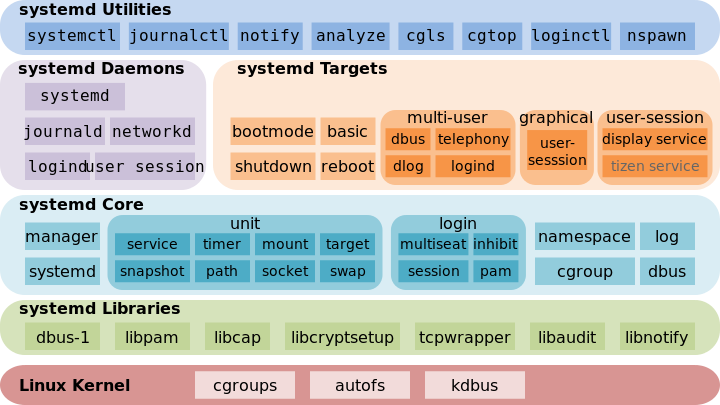 With the release of RHEL 7, users need to adapt to a different service manager: systemd replaces SysVinit. It offers several advantages, including parallel operation, mount point handling, and cgroups support.
Since nearly all the commands have changed, I have provided tables comparing SysVinit and systemd so users can find the equivalents of familiar commands.
*** The example service in these tables is named abc.
With the release of RHEL 7, users need to adapt to a different service manager: systemd replaces SysVinit. It offers several advantages, including parallel operation, mount point handling, and cgroups support.
Since nearly all the commands have changed, I have provided tables comparing SysVinit and systemd so users can find the equivalents of familiar commands.
*** The example service in these tables is named abc.