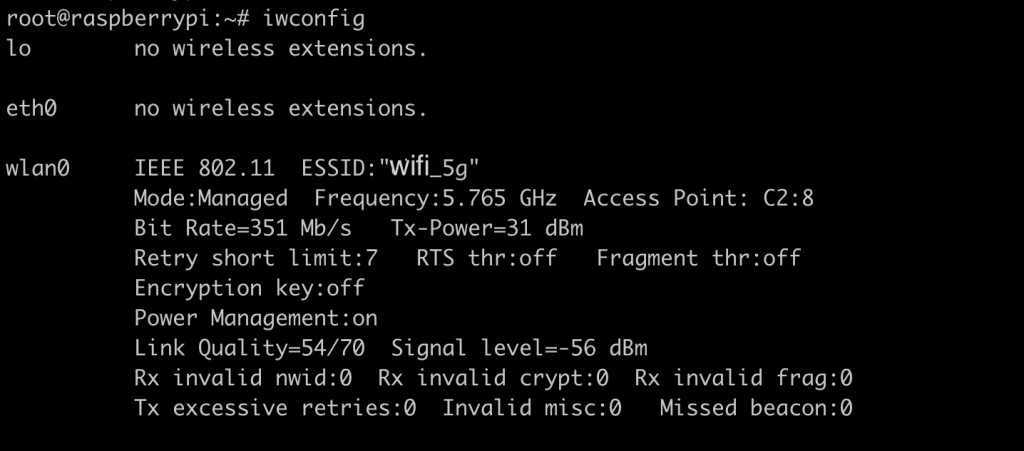
How to setup wifi (5G) by cli on Raspberry Pi
Raspberry Pi OS provides a command to configure Wi-Fi from the command line, useful for developers who cannot conveniently use a GUI. Run:
# raspi-configA TUI configuration screen appears. Select “System Options”.
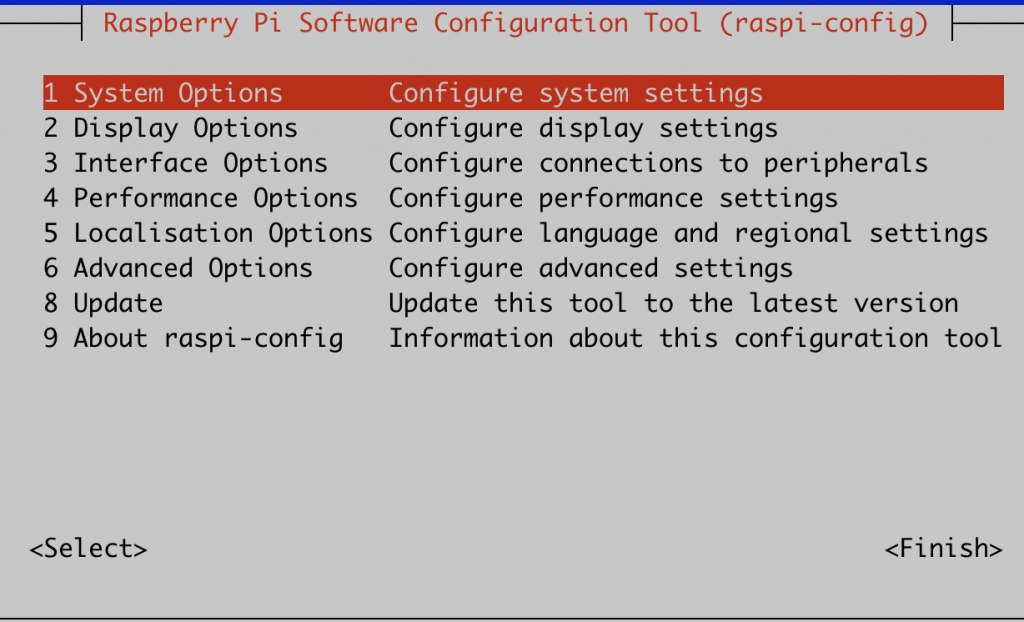
Select “Wireless Lan”.
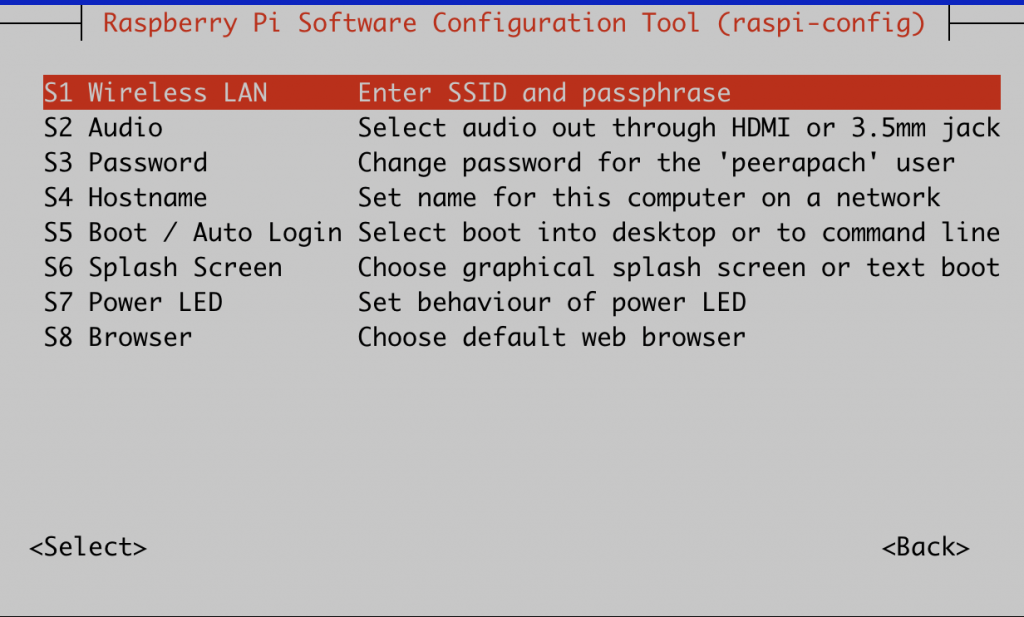
Enter the SSID, or Wi-Fi name, to connect to. This example uses “wifi_5g”.
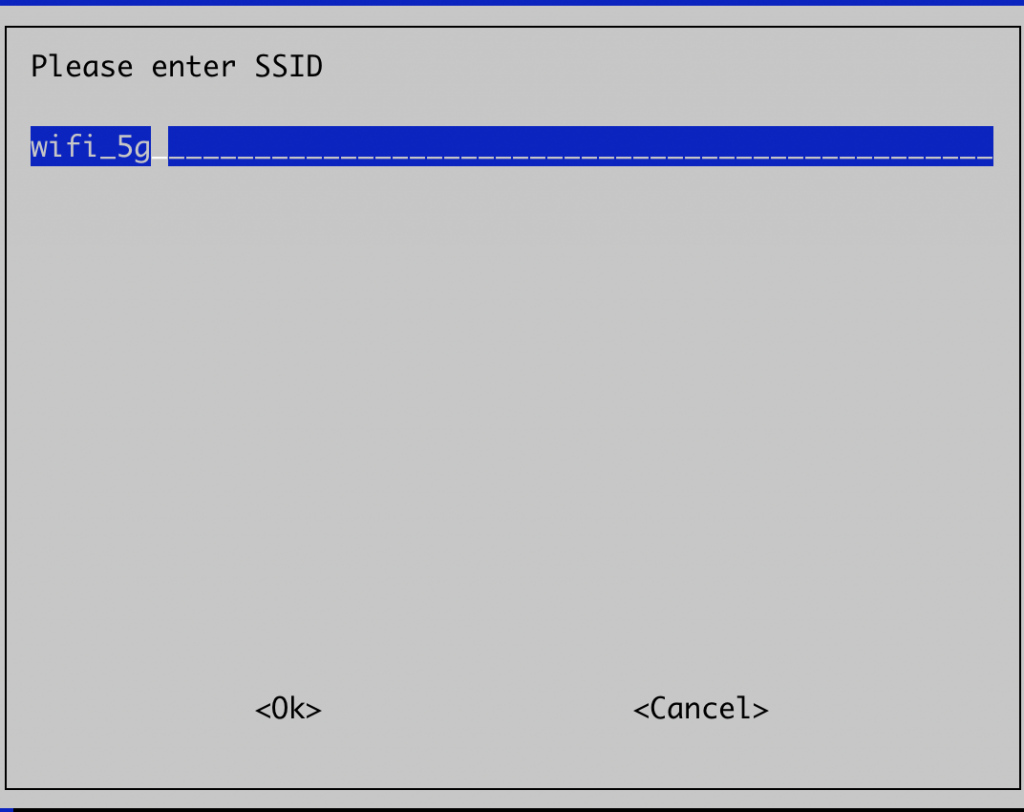
Enter the Wi-Fi password.
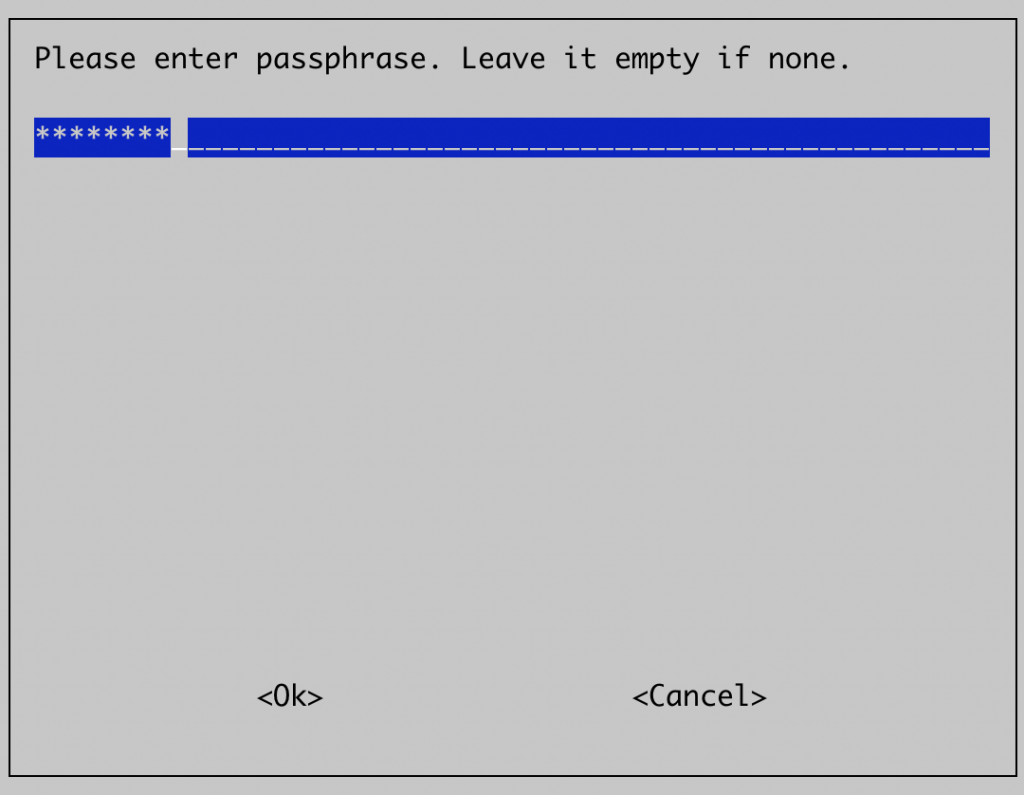
Once connected to Wi-Fi, select Finish.
If it is 5 GHz Wi-Fi and fails to connect with the following error:
<b>Error: No network with SSID 'wifi_5g' found.</b>The selected Wi-Fi country does not support it. Change the country as follows:
Select “Localisation Options”.
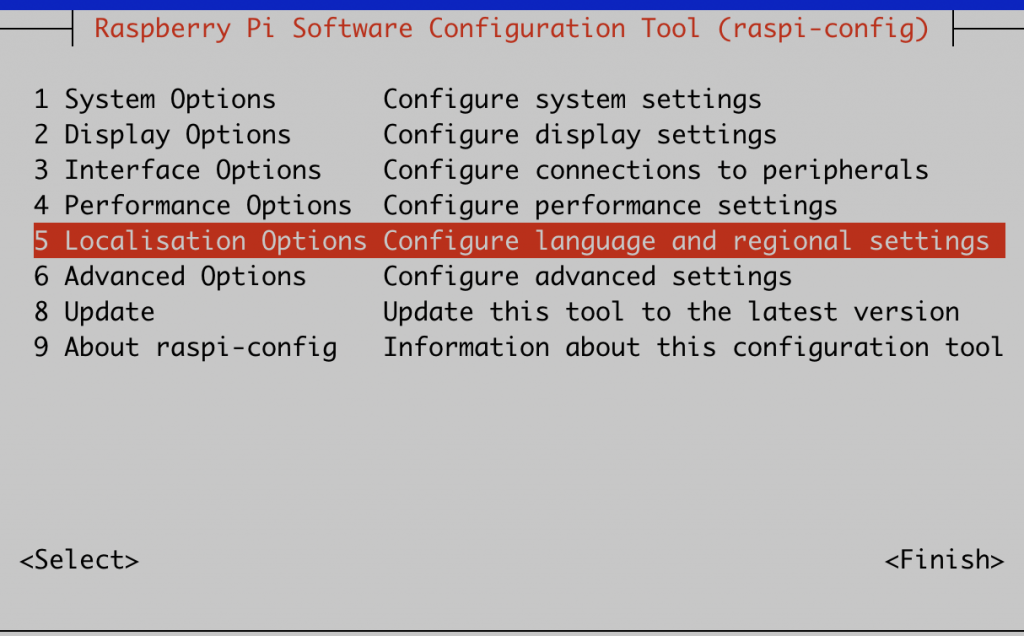
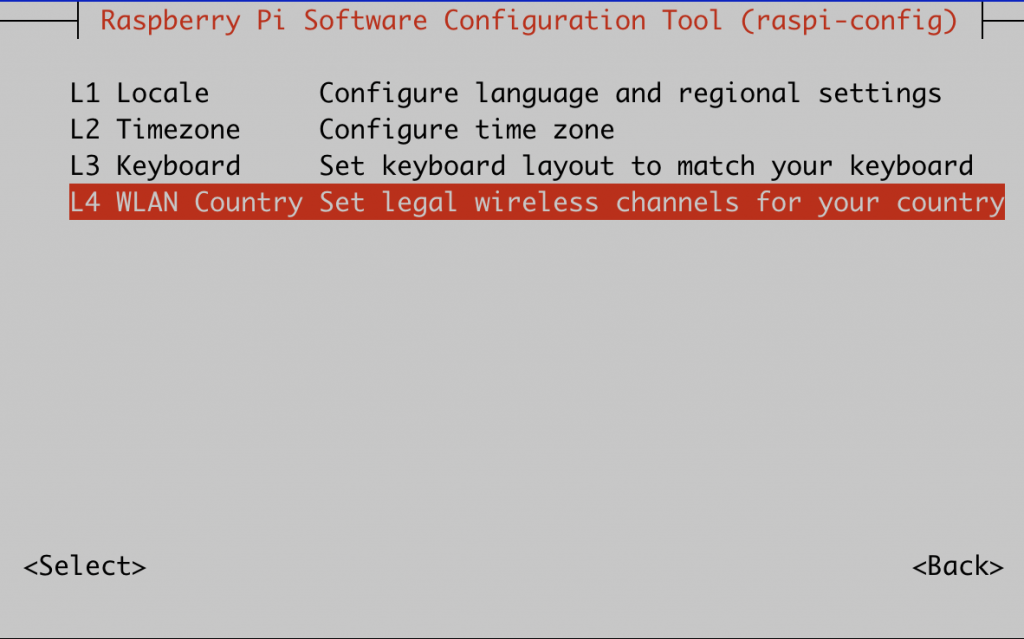
Select “WLAN Country”.
Select “US United States”.
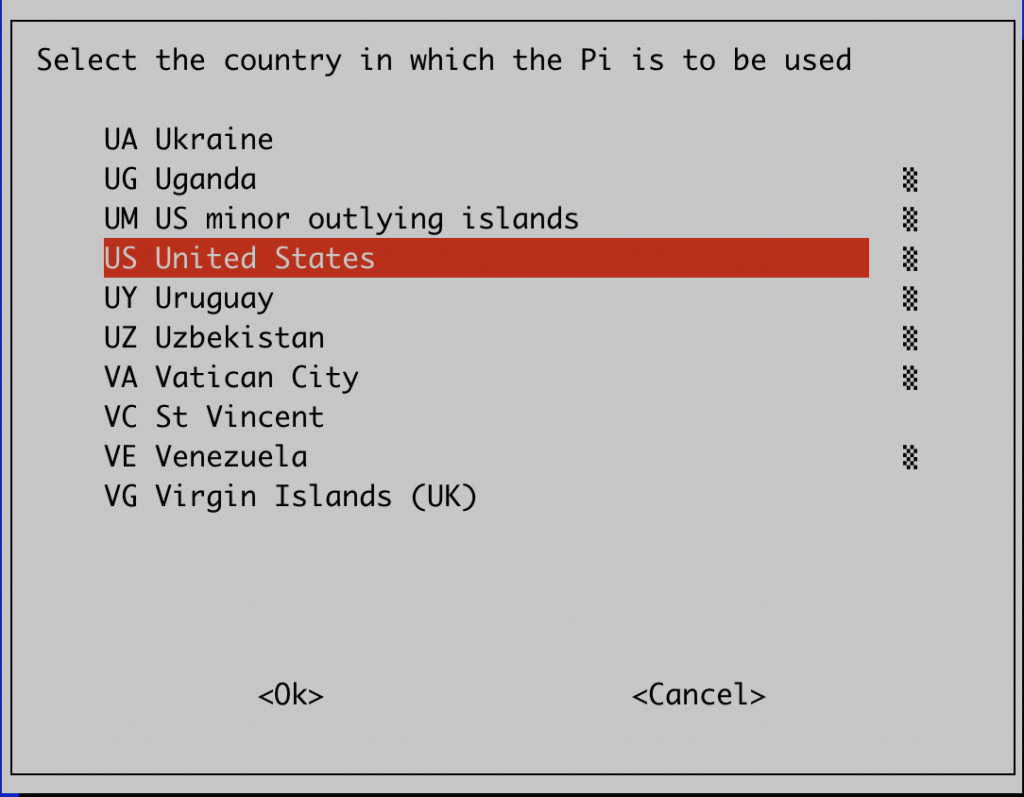
When finished, select “Finish” and reboot with:
# rebootThen configure Wi-Fi again using the steps above.
Trick
To check which SSID Raspberry Pi OS is connected to, run:
# iwconfig