How to update dell server firmware with Dell Unified Server Configurator
 Dell Server users who want to update firmware for the BIOS, network cards, iDRAC, RAID controller, and other components can use Dell Unified Server Configurator. It is more convenient than other methods because it updates components automatically, provided the server can access the internet.
The update process is straightforward because it uses a graphical interface. Follow these steps to update the firmware easily.
Dell server firmware update steps
Dell Server users who want to update firmware for the BIOS, network cards, iDRAC, RAID controller, and other components can use Dell Unified Server Configurator. It is more convenient than other methods because it updates components automatically, provided the server can access the internet.
The update process is straightforward because it uses a graphical interface. Follow these steps to update the firmware easily.
Dell server firmware update steps
- Press F10 on the boot screen to enter System Services.
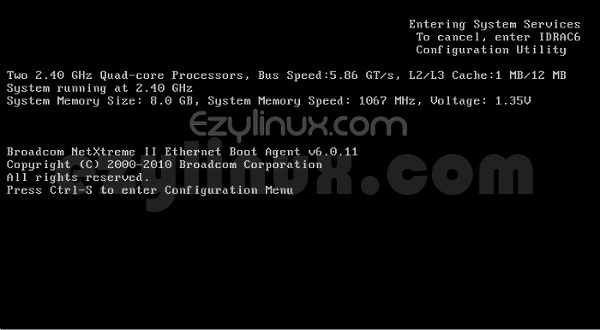
- The Dell Unified Server Configurator screen appears. Wait for it to load.
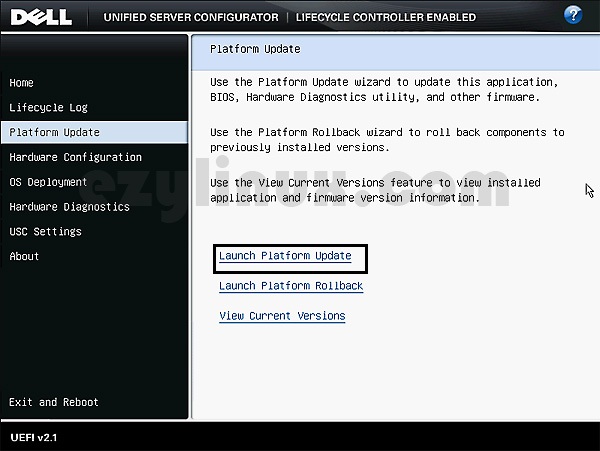
- Once Dell Unified Server Configurator loads, select Platform Update from the menu.
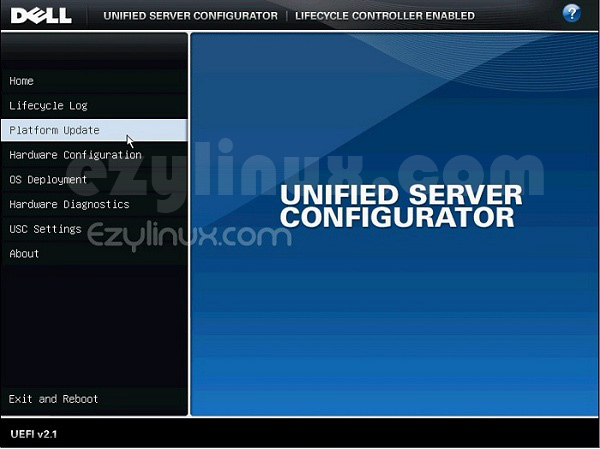
- Select Launch Platform Update.
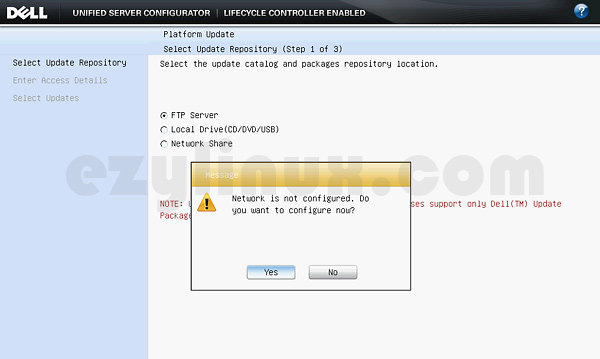
- Select the FTP Server update method. If the network is not configured, the system prompts you to configure it; click Yes. If it is already configured, skip to step 9.
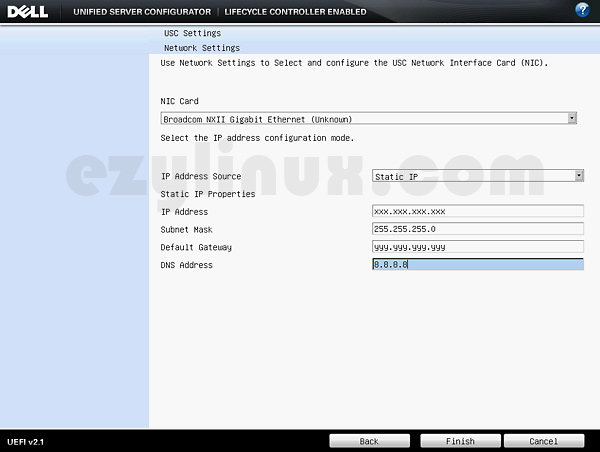
- Enter your network configuration as shown, then click Finish.
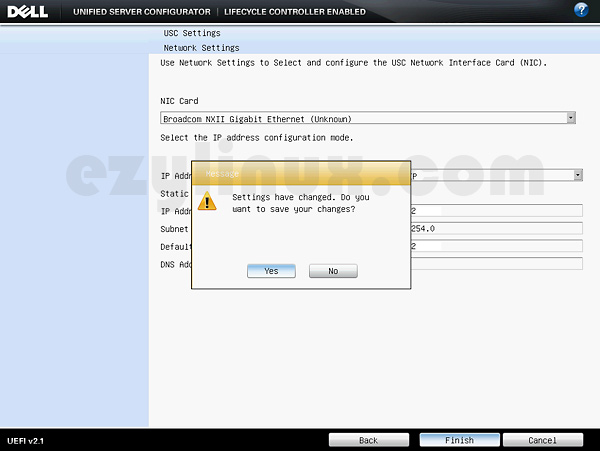
- The system then asks to save the settings so you will not need to configure the network next time.
- Check that the network settings are correct by selecting Test Network Connection. Correct settings produce the result shown below.
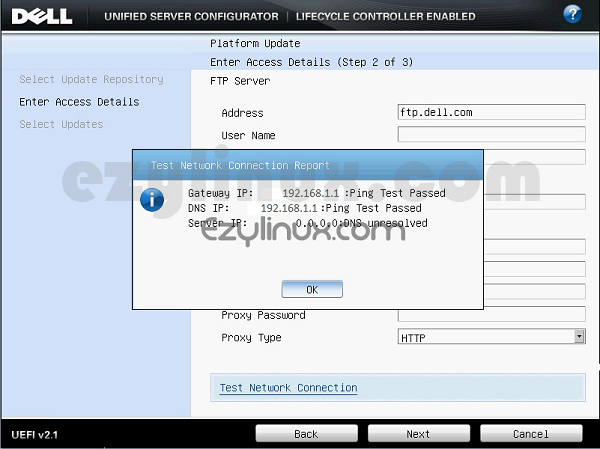
- After testing the network, click Finish and wait. The default settings should download component updates. If they do not, try the value below in the Address field.
- 143.166.11.10
- ftp.us.dell.com
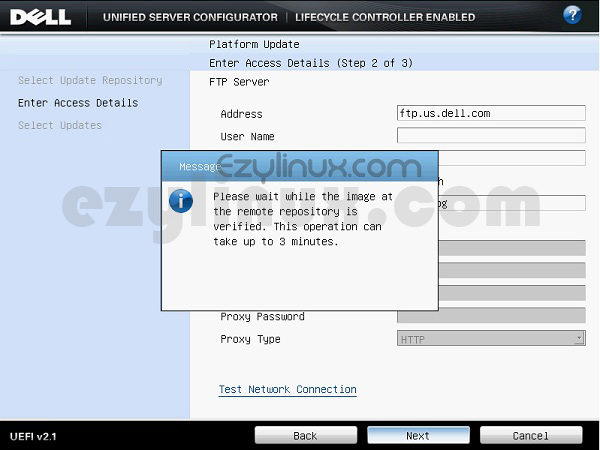
- After retrieving information and checking which components need updating, the system lists the available updates. Select the components to update, as shown.
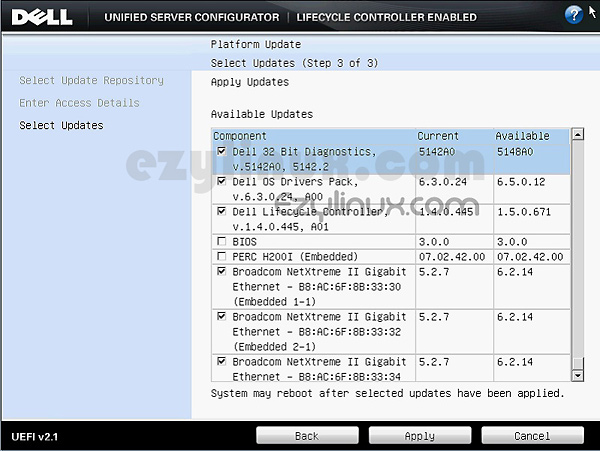
- Click Apply, then wait for the update process to begin.
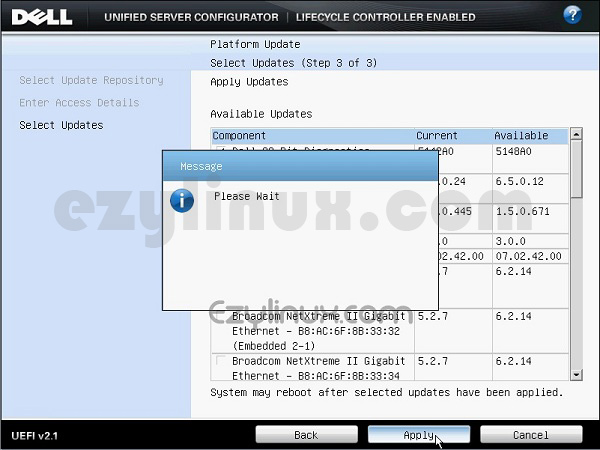
- Once updating begins, its progress is displayed. Wait for it to finish.
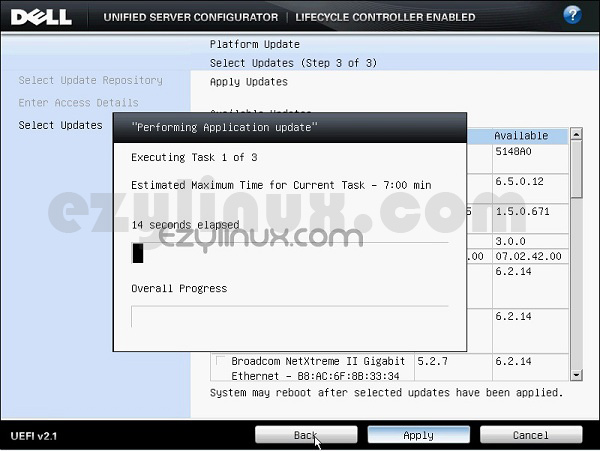
- If you selected a BIOS update, the system reboots before updating it. Do not be surprised if it reboots and returns to Dell Unified Server Configurator to update the BIOS, as shown below.
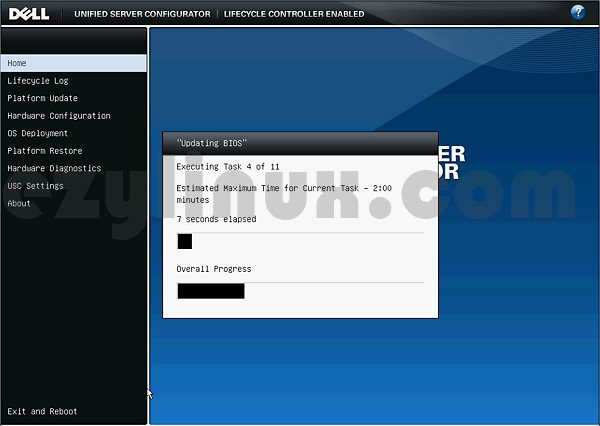
- When the update finishes, the system reboots automatically.