How to allow view messages with external images on Zimbra
Zimbra webmail prevents automatic loading of external images for user safety. If you want images to load every time without clicking display image(s), add the sender’s email address or domain to Trusted Address. Zimbra webmail will then stop asking whether to display external images. Adding and removing sender email addresses or domains in Trusted Address
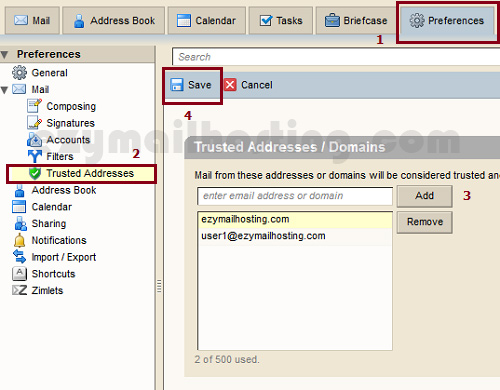
- Click Preferences.
- In the Mail section on the left, select Trusted Address.
- Add the email address or domain (all email from @domain.com) that you want in the Whitelist (Trusted Address).
- When you have finished making changes, click Save.