How to enable Dumpster or Email Retention Policy
Since zimbra 7.0, a new feature called “Dumpster” has allowed users to recover email, calendars and contacts after they have been deleted from trash. This makes recovery quick and avoids spending time restoring data from the system. How Dumpster works When email is deleted from trash, or reaches the scheduled deletion time in trash (normally 30 days), Junk or Spam (normally 30 days), the system moves it to the dumpster to await deletion from the system. If dumpster is enabled, the system waits until the deletion time is reached (normally 30 days after deletion from trash). At the specified time, the items become invisible to the user (see zimbraDumpsterUserVisibleAge for the number of days) and await deletion from the system (see zimbraMailDumpsterLifetime for the number of days).
Enabling Dumpster or Email Retention Management
Enabling and checking Dumpster through the Web GUI
For a COS
Select Configure > Class of service> [COSname] > Features page > General Features section and select Dumpster folder.
For an individual account
Select Manage > Accounts > Features > General Features section and select Dumpster folder.
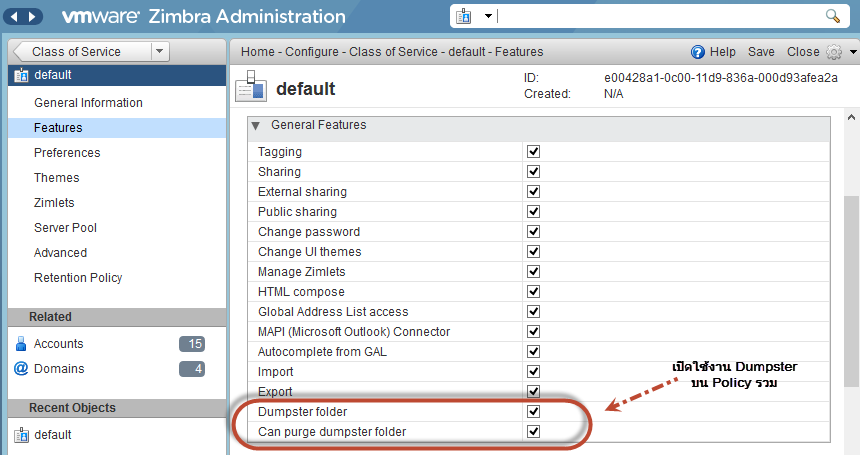 Checking and enabling Dumpster through the command line
For a COS
Checking and enabling Dumpster through the command line
For a COS
[zimbra@EzyMailHosting ~]$ zmprov getCos default|grep -i dumpsterReplace default with the name of the COS you want to check. For an individual account
[zimbra@EzyMailHosting ~]$ zmprov ga [email protected] |grep -i dumpsterReplace [email protected] with the email address you want to check. If the result is:
zimbraDumpsterEnabled: FALSEDumpster has not yet been enabled. Enabling Dumpster through the command line To enable Dumpster, run the following commands. For a COS
[zimbra@EzyMailHosting ~]$ zmprov mc zimbraDumpsterEnabled TRUEFor an individual account
[zimbra@EzyMailHosting ~]$ zmprov ma [email protected] zimbraDumpsterEnabled TRUE