How to install CentOS 6 for Zimbra Mail Server
Zimbra supports only a few Linux distributions. One of them is CentOS 6, a very popular Linux distribution. This article explains how to install CentOS 6 so that it works smoothly with Zimbra. The installation steps are as follows.
Installing CentOS 6 for Zimbra Mail Server
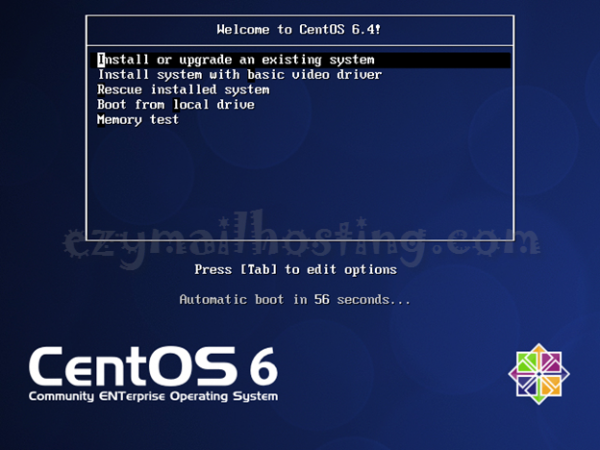
After starting the computer with the CentOS 6 installation disc inserted, the Welcome to CentOS installation screen appears. Select Install or upgrade an existing system.
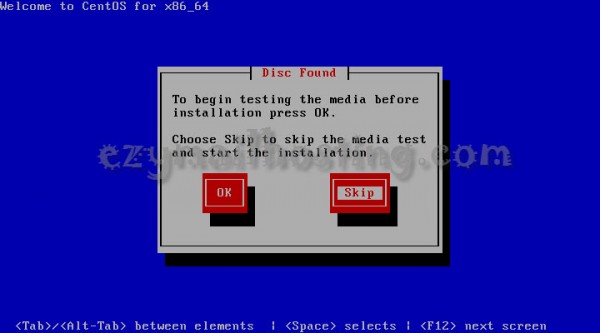
 After the installer has loaded for a while, it asks to test the installation media. Select Skip.
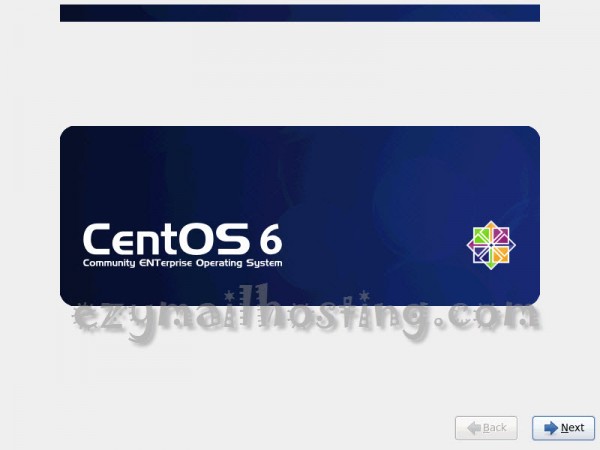
 After skipping the check, the graphical installer appears. Click Next.
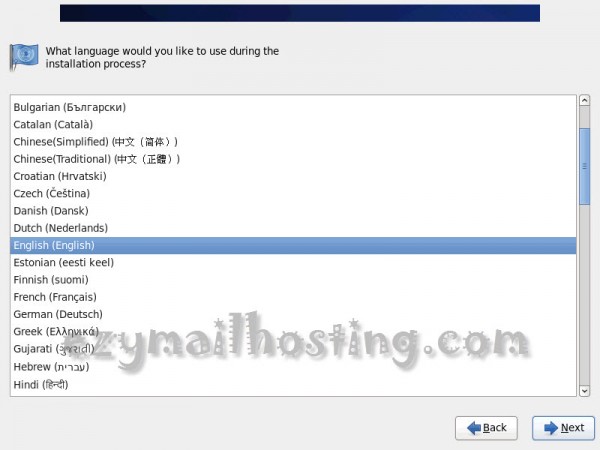
 Select English (English) as the installation language and click Next.
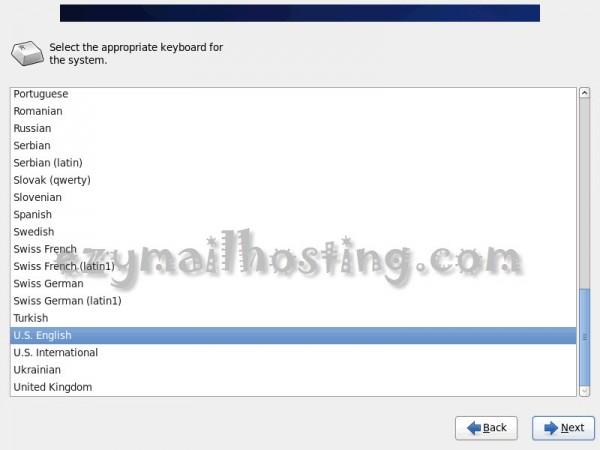
 Select U.S. English as the system keyboard and click Next.
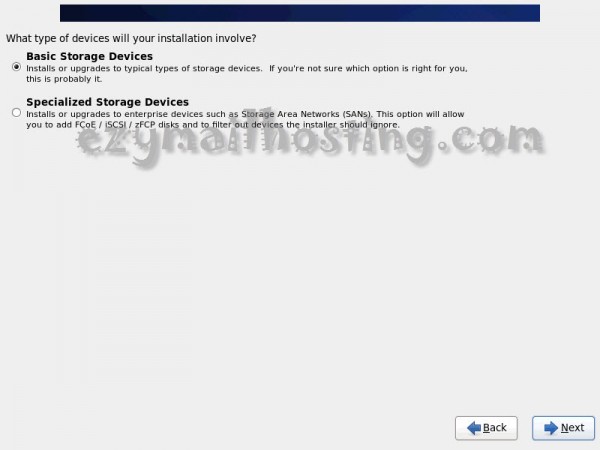
 Select Basic storage Devices and click Next.
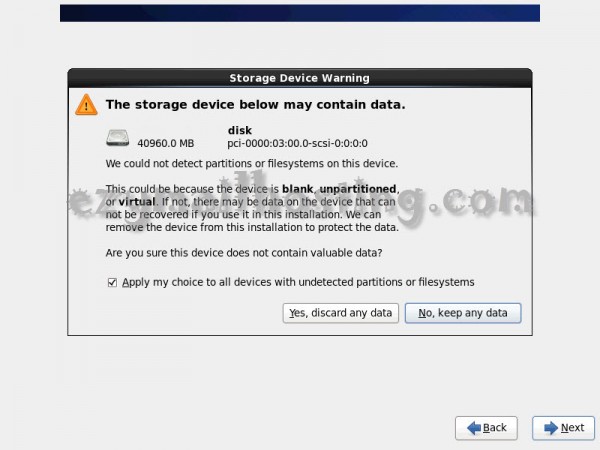
 The installer checks the disk and displays its size. Select Yes, discard any data.
 Enter the hostname and click Configure Network.
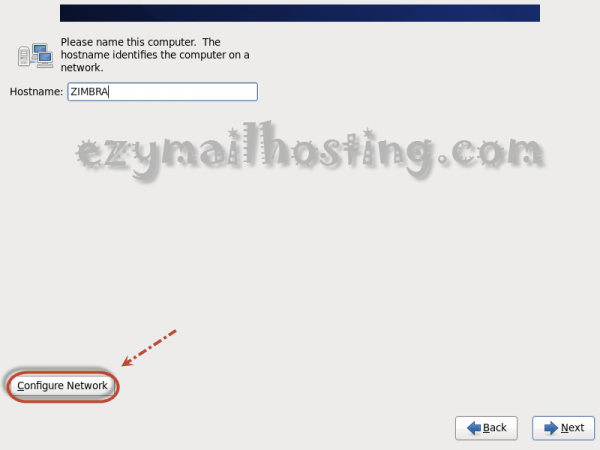 Click System eth0 and then Edit…
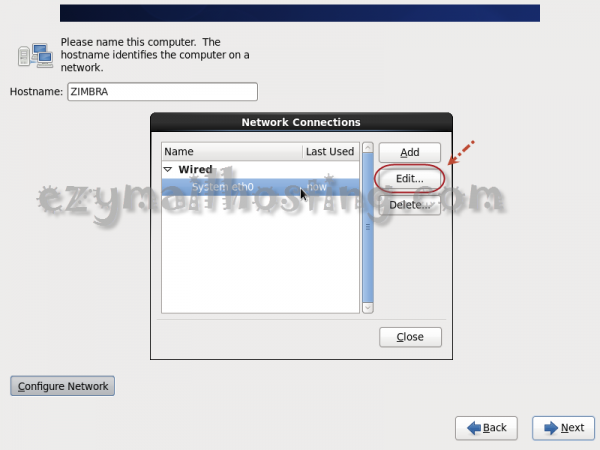 Select Connect automatically and the IPv4 Settings tab, then set Method to Manual.
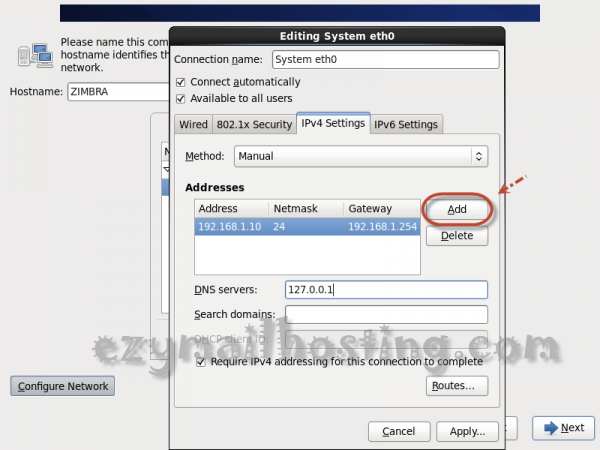
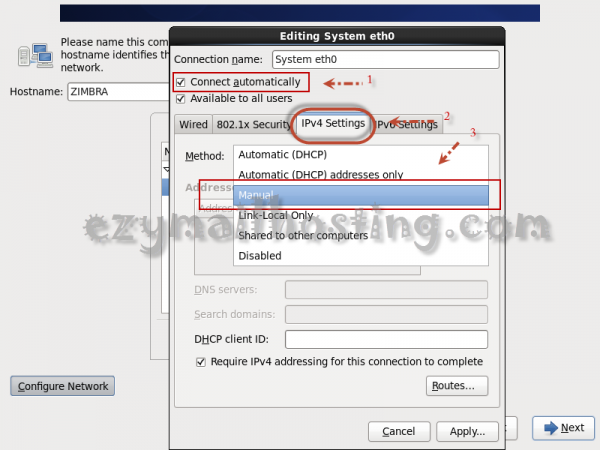 Click Add, enter the IP Address and DNS server, and click Apply.
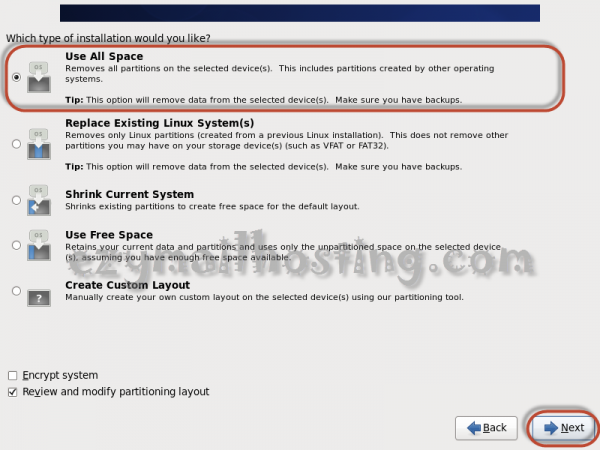
 The installer then asks how to partition the disk. Select Use All Space and click Next.
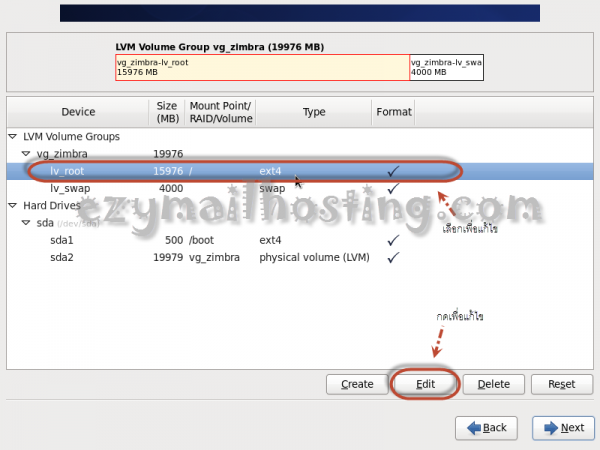
 Select lv_root and click Edit to resize lv_root and make room for /opt.
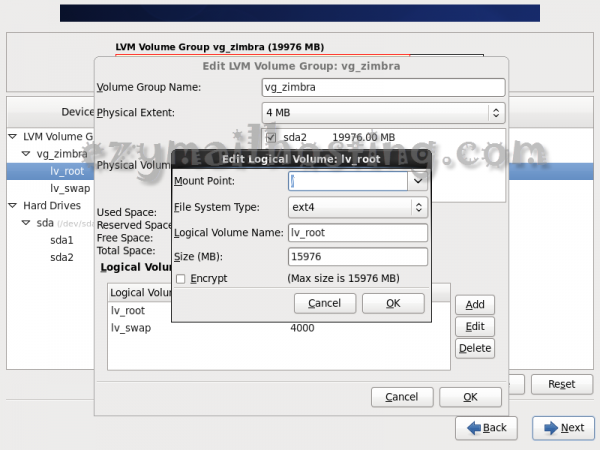
 Reduce its size by the amount you want to allocate to /opt and click OK.
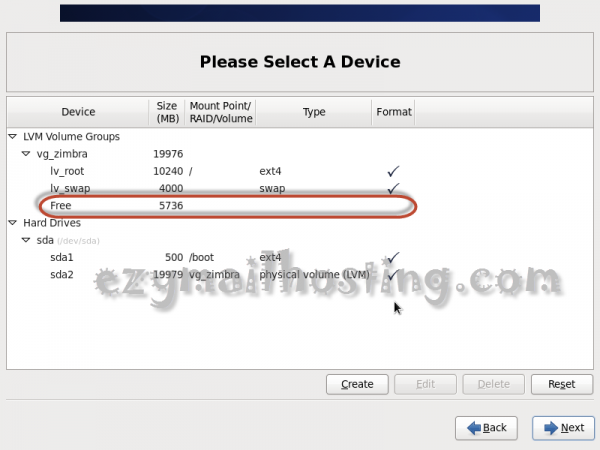
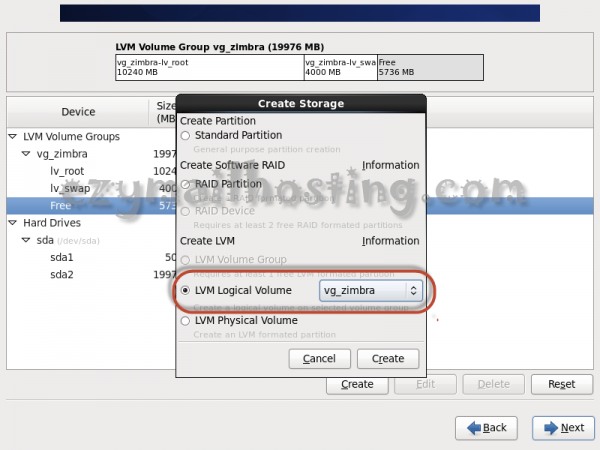
 Free space will now appear. Click Create.
 Select LVM Logical Volumn -> vg_zimbra and click Create.
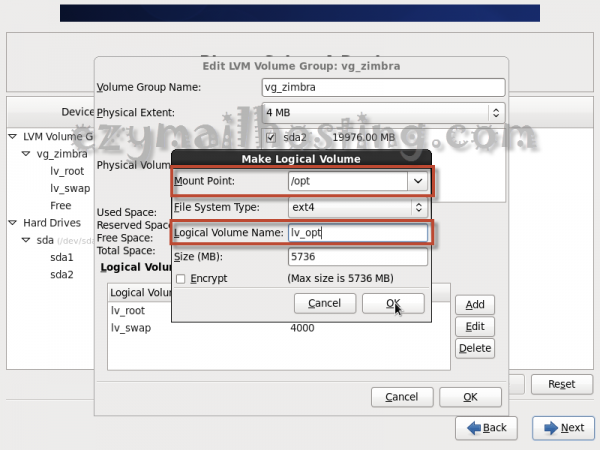
 Enter the following details:
Mount Point: /opt Logical Volumn Name: lv_opt Size: All remaining space
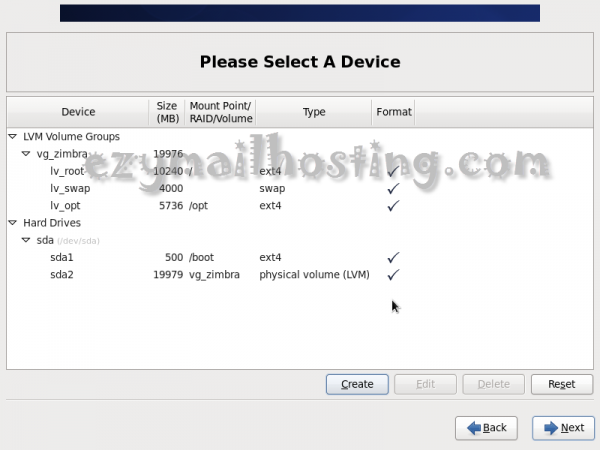
 After creating /opt, the partitions should look like the example below. Click Next.
 The installer asks you to confirm formatting.
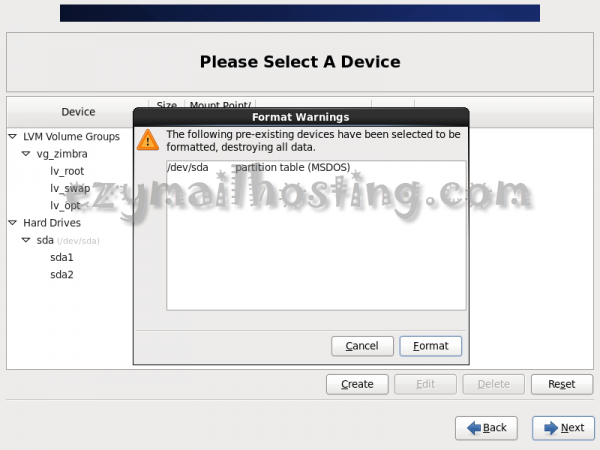 Click Next.
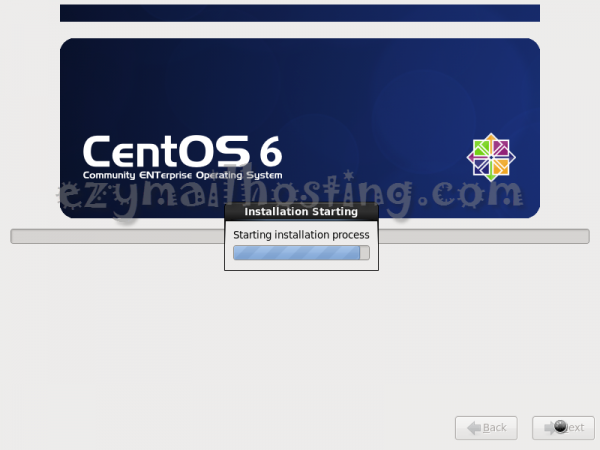
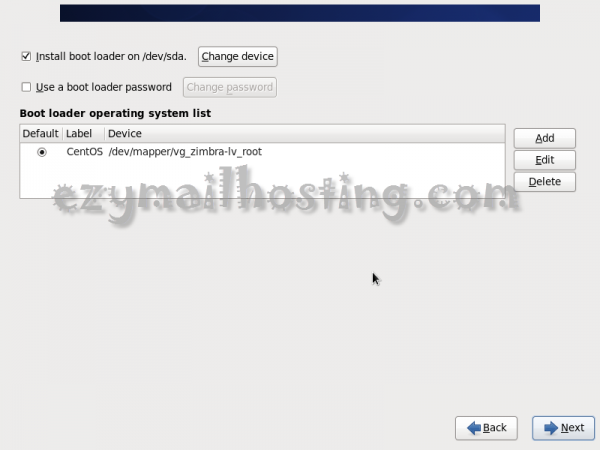 Installation begins. Wait for it to finish…
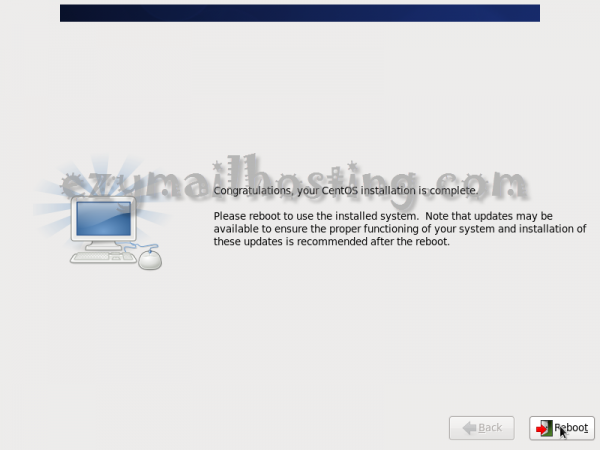
 When installation finishes, the completion screen appears. Click Reboot.