How to share your email folders in Zimbra mail server
Zimbra mail has a function that allows email owners to share email folders with other users. Those users can have read-only access or permission to manage the email in a shared folder, as specified by the folder owner. This makes working together more convenient. This email folder sharing method supports only Zimbra webmail or Zimbra desktop. Users who send and receive email with other programs cannot use this function. To share an email folder for use by others, configure it as follows.
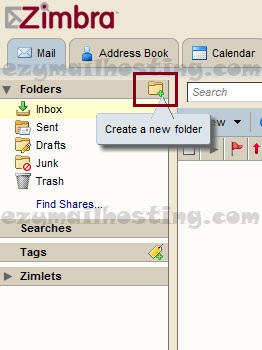
- Create a new folder by clicking the folder icon, or skip to step 3 if the folder already exists.
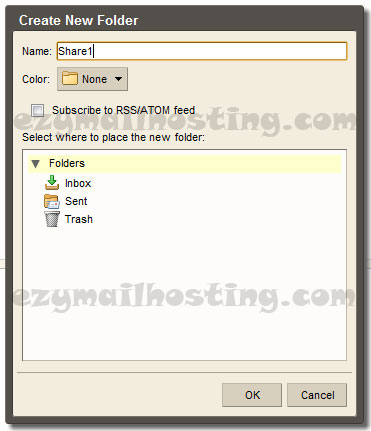
- Name the folder and specify where to put it under Select where to place the new folder, by clicking the desired parent folder.
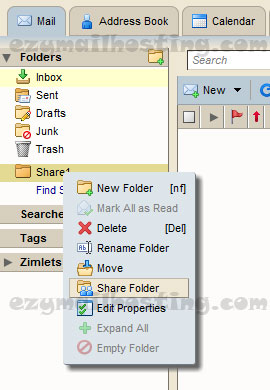
- Once the folder has been created, right-click it and select Share Folder.
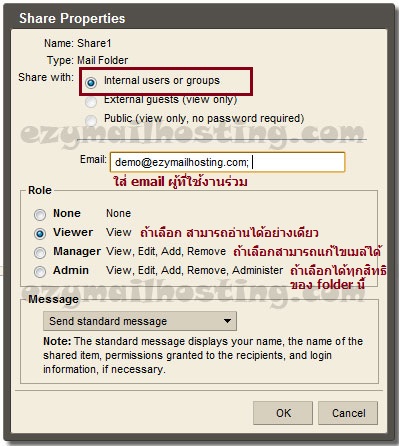
- Specify who can view it and set the permissions for those users, then click OK.
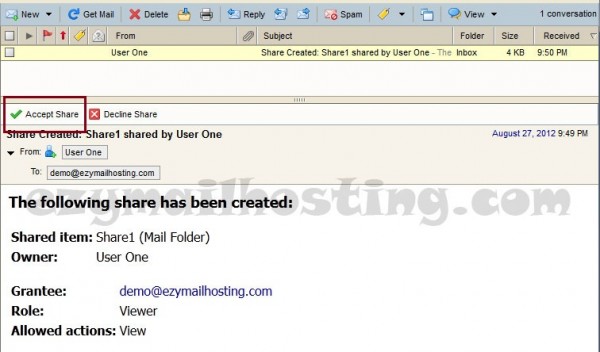
- After you click OK, the recipient receives an email notification. They should click “Accept Share” to accept the shared information.
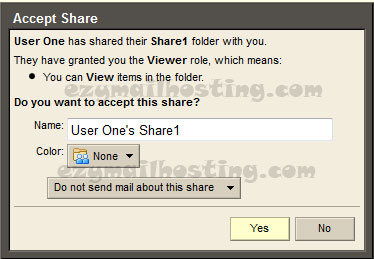
- The Accept Share window appears. Set a new folder name (optional) and folder color, then click OK.
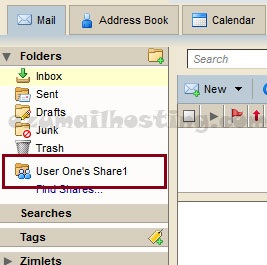
- After completing these steps, the recipient can see the shared Folder.