Proxy Auto Configuration (PAC) - Proxy auto-config
This may be old news to many people, but it is new to me. A few days ago I wondered whether I could use a proxy for certain websites and connect directly to all others. Searching led me to proxy auto-configuration. It looked interesting and turned out to do exactly what I needed. Beyond my own needs, this can be used in an organization to determine which proxies users use without having to walk around configuring every machine. It also works with DHCP or Active Directory. The setup is not very difficult. It is like writing a program, with only a few functions to use. The basic structure is:
function FindProxyForURL(url, host)
{
  ...
}
With that basic structure in mind, here are a couple of functions needed to create a proxy client autoconfig file.
-
shExpMatch(str or url or host, shexp) str is the string to compare. url and host receive their values from the FindProxyForURL function. shexp is the comparison expression and can contain wildcards. It returns true if the two values match. For example: shExpMatch(“http://w3.ezylinux.com/website1/index.html”, “*site1*”) returns true. shExpMatch(host, “*.ezylinux.com”) returns true for a request to the ezylinux.com website. 2. isInNet(host, pattern, mask) host receives its value from FindProxyForURL and uses DNS to resolve the IP address. pattern is the IP address. mask is the subnet mask. For example: isInNet(host, “198.95.249.79”, “255.255.255.255”) returns true if the host is 198.95.249.79. isInNet(host, “198.95.0.0”, “255.255.0.0”) returns true if the host is on the 198.95.0.0 network. There are three possible return values:
-
DIRECT connects without a proxy.
-
PROXY host:port uses the proxy at the specified host and port.
-
SOCKS host:port uses the proxy at the specified host and port.
Usage example (proxy.pac)
function FindProxyForURL(url, host)
{
   if (isInNet(host, "192.168.0.0", "255.255.0.0")) { //อยู่ในวง 192.168.0.0 หรือไม่
      return "DIRECT";
   } else {
      if (shExpMatch(host, "*.ezylinux.com")) // จะเข้าเวป ezylinux.com หรือไม่
         return "DIRECT" ;
      else if (shExpMatch(url, "http:*"))   // เข้าเวปด้วย http หรือ port 80
         return "PROXY webcache.ezylinux.com:3128" ;
      else if (shExpMatch(url, "https:*"))  //เข้าเวปด้วย https หรือ port 443
         return "PROXY webcache.ezylinux.com:3128" ;
      else if (shExpMatch(url, "ftp:*"))   // เข้าใช้งาน ftp หรือ port 21
         return "PROXY webcache.ezylinux.com:3128" ;
      return "DIRECT";
   }
}
Once the configuration file is ready, place it either on your own computer or on a server (web server):
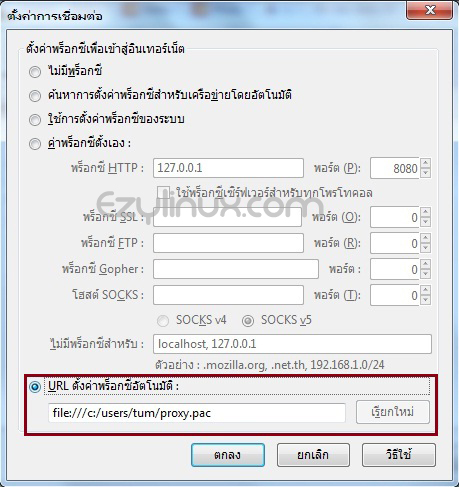
- For a local file, use file:///c:/users/tum/proxy.pac
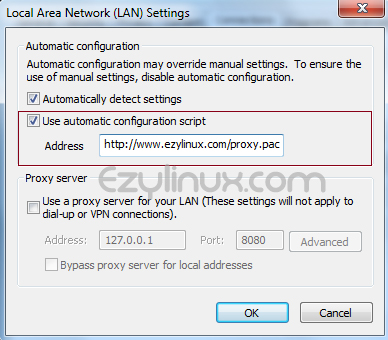
- For a server-hosted file, use http://www.ezylinux.com/proxy.pac and remember to add AddType as shown below. AddType application/x-ns-proxy-autoconfig .pac
Enter this in Automatic proxy configuration URL in Firefox’s proxy settings, or Use automatic configuration script in IE’s proxy settings, as shown.