How to install SendmailAnalyzer on Zimbra mail
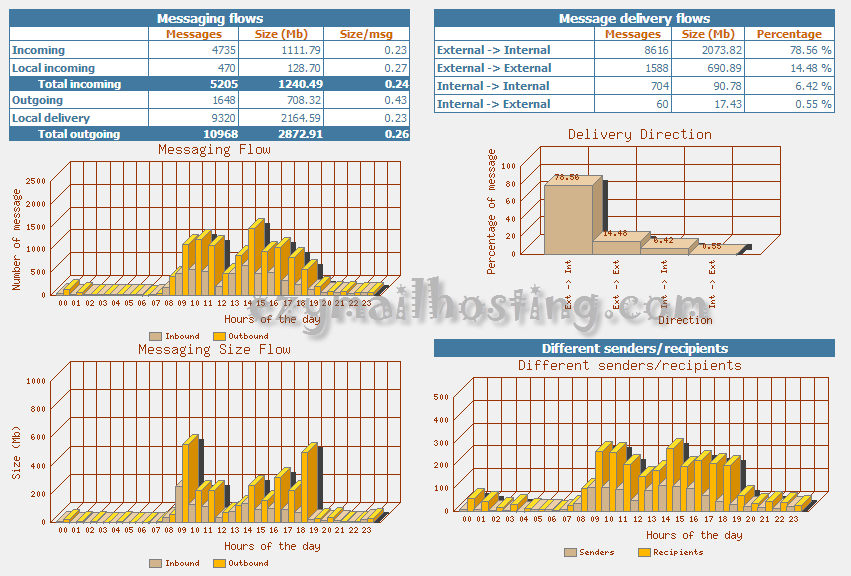
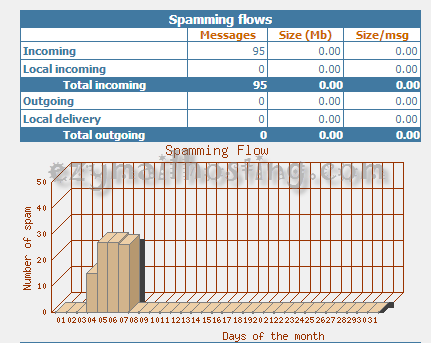
 SendmailAnalyzer is a log analysis program that helps administrators examine an overview of incoming and outgoing email in graphs and reports, with hourly, daily, monthly, and yearly views. SendmailAnalyzer reports can also work with SpamAssassin, MailScanner, Clamav, Amavis, RBL check, J-ChkMail, and others.
Examples of SendmailAnalyzer reports:
SendmailAnalyzer is a log analysis program that helps administrators examine an overview of incoming and outgoing email in graphs and reports, with hourly, daily, monthly, and yearly views. SendmailAnalyzer reports can also work with SpamAssassin, MailScanner, Clamav, Amavis, RBL check, J-ChkMail, and others.
Examples of SendmailAnalyzer reports:
- Hourly email traffic volume
- Daily email traffic volume
- Monthly email traffic volume
- Yearly email traffic volume
- Email delivery status by day, month, and year
- Top 25 Spammers Domain by day, month, and year
- Top 25 Spammers Address by day, month, and year
- Top 25 Emails Address and servers receiving the most mail, by day, month, and year
- Top 25 Emails Address and servers sending the most mail, by day, month, and year
SendmailAnalyzer continuously gathers data from logs, allowing administrators to quickly review inbound/outbound email, spam, and virus traffic. Installing SendmailAnalyzer for use with Zimbra Mail Server
-
Install the perl modules needed to support SendmailAnalyzer.
[root@EZMAIL ~]# yum install perl-GD perl-GDGraph perl-GDGraph3d perl-GDTextUtil perl-GD -
Download SendmailAnalyzer from http://sourceforge.net/projects/sa-report/
-
Once the download is complete, extract the file with this command:
[root@EZMAIL ~]# tar xvzf sendmailanalyzer-8.x.tar.gz -
After extracting the file, enter sendmailanalyzer-8.x with this command:
[root@EZMAIL ~]# cd sendmailanalyzer-8.x -
Compile the code for use on the system.
[root@EZMAIL sendmailanalyzer-8.x]# perl Makefile.PLOutput:
Checking if your kit is complete... Looks good Writing Makefile for sendmailanalyzer Done... Now type 'make && make install' -
Then run the installation command:
[root@EZMAIL sendmailanalyzer-8.x]# make && make install -
Run the command below to begin generating reports:
[root@EZMAIL sendmailanalyzer-8.x]# /usr/local/sendmailanalyzer/sendmailanalyzer -f -
Set up cron to cache data every 5 minutes. Run the following command to add a cron entry to the system:
[root@EZMAIL ~]# crontab -eAdd:
*/5 * * * * /usr/local/sendmailanalyzer/sa_cache -a > /dev/null 2>&1 -
Configure logrotate so the system continues working after log files have been rotated. Create /etc/logrotate.d/maillog with this command:
[root@EZMAIL ~]# vi /etc/logrotate.d/maillogThen insert the following configuration:
/var/log/maillog { weekly rotate 20 compress delaycompress sharedscripts postrotate /bin/kill -HUP `cat /var/run/syslogd.pid 2>/dev/null` 2>/dev/null || true /usr/local/sendmailanalyzer restart >/dev/null 2>&1 || true endscript } -
Add the /sareport URI to apache by editing /etc/httpd/conf/httpd.conf and appending the following text at the end:
Alias /sareport /usr/local/sendmailanalyzer/www <Directory /usr/local/sendmailanalyzer/www> Options ExecCGI AddHandler cgi-script .cgi DirectoryIndex sa_report.cgi </Directory> -
Restart the apache service with this command:
[root@EZMAIL ~]# service httpd restart -
You can now view SendmailAnalyzer reports at:
http://ip.address/sareport
Example SendmailAnalyzer reports: