Setting Microsoft Outlook to use Zimbra Directory Service (LDAP)
Zimbra has a Directory Service that supports address books through the ldap protocol. This allows Microsoft Outlook to retrieve address book data from Zimbra and makes it easier for users to search for names or email addresses.
Setting up Microsoft Outlook with Zimbra Directory Service and basic usage
Enabling ldap in Microsoft Outlook
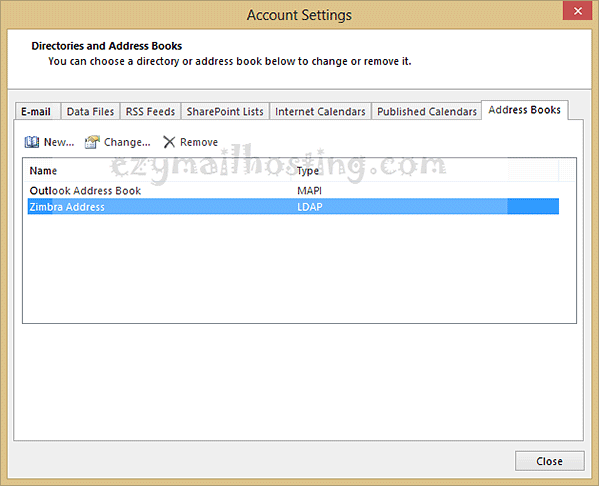
Open Account Settings, select Address books, and click New to create an address book that retrieves data from the Zimbra server through the ldap protocol.
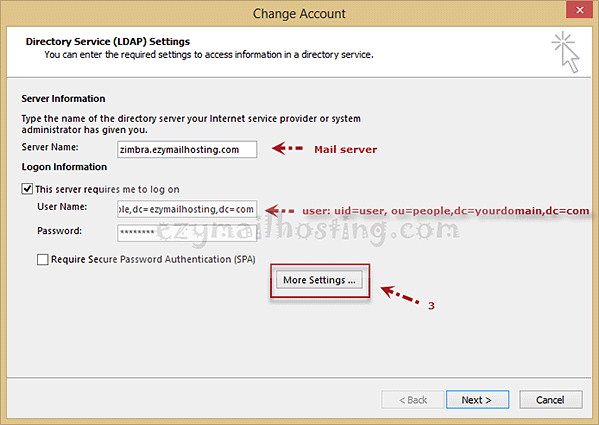
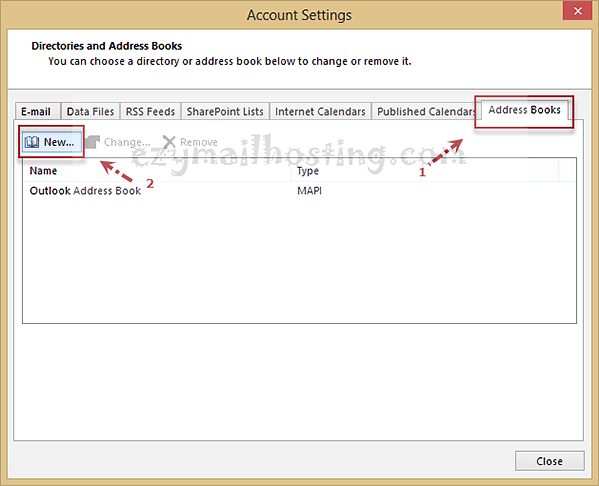 Enter the following information:
- Server name: the server’s name
- User name: the username in ldap format; enter
user=USER, ou=people, dc=YOURDOMAIN,dc=DOMAINDOTwhere- user is the username.
- YOURDOMAIN is the email domain name, and DOMAINDOT is .com, .net, .org, or another suffix.
- Password: the password
Then click More Setting.
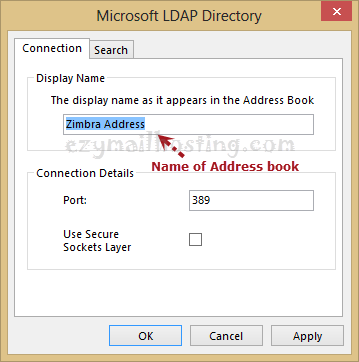
 Set the Address book name.
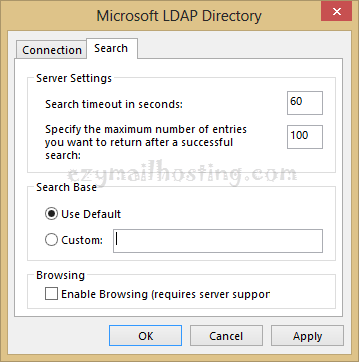
 Then select search, make sure the settings match the image below, and click OK.
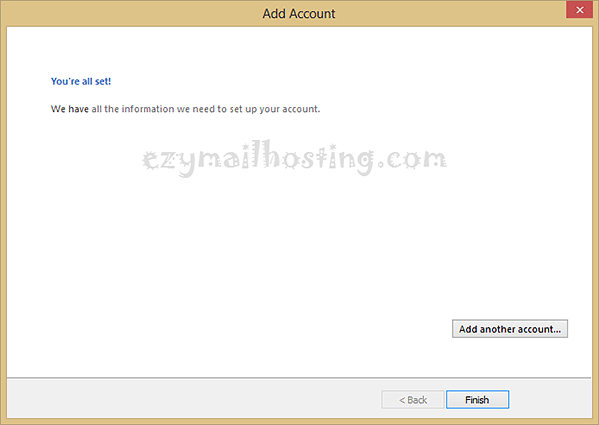
 Once setup is complete, the completion screen appears. Select finish.
 You will then see the newly added Address book configuration. Restart Outlook.
Using the Zimbra address book through Microsoft Outlook
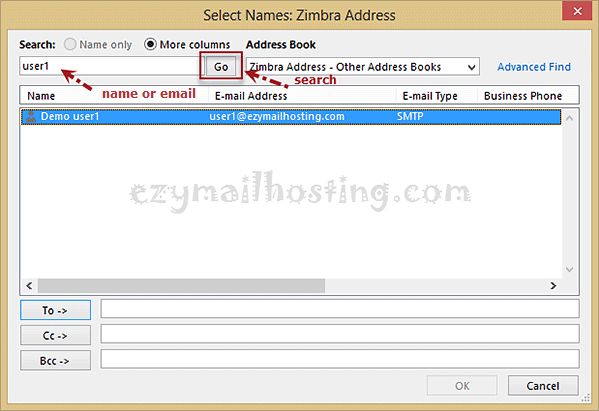
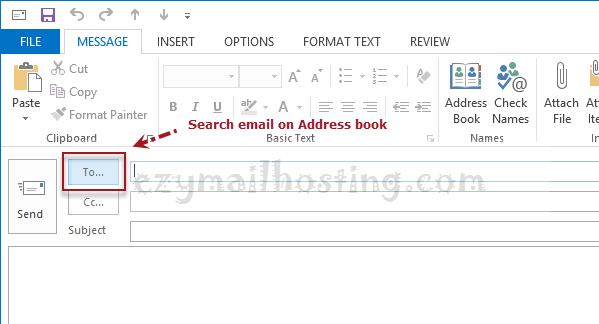
There are several ways to search for email addresses and names in the Zimbra Address book. Here we will search from the Microsoft Outlook compose window. After opening a new message, click “To…”.
 This opens the email address and name search window. Under Address book, select the address book you created, which is Zimbra Address in this example.
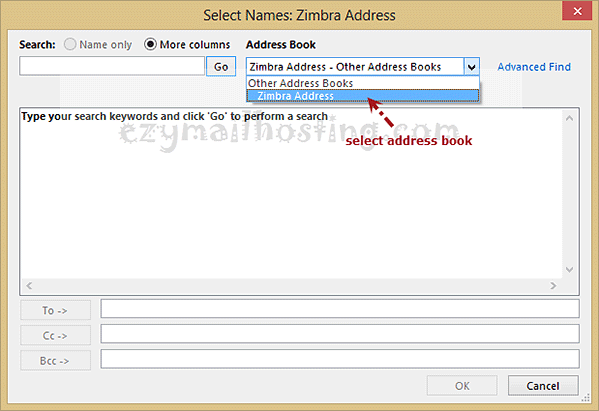 Enter the email address or name to search for and click Go. If the information exists in the system, it appears as shown.