How to setting pop-up email notification in Zimbra
Yahoo! has discontinued development of Yahoo! Browser Plus, so it can no longer be downloaded. You can use ZebraTray as an alternative program for pop-up notifications of new email.
 Users of Zimbra webmail or Zimbra Desktop can configure pop-up notifications when new email arrives in the mailbox. This lets users know immediately when new email enters the system and helps speed up communication.
To configure Zimbra webmail or Zimbra Desktop to show a pop-up notification when new email arrives in the mailbox, follow these steps.
Users of Zimbra webmail or Zimbra Desktop can configure pop-up notifications when new email arrives in the mailbox. This lets users know immediately when new email enters the system and helps speed up communication.
To configure Zimbra webmail or Zimbra Desktop to show a pop-up notification when new email arrives in the mailbox, follow these steps.
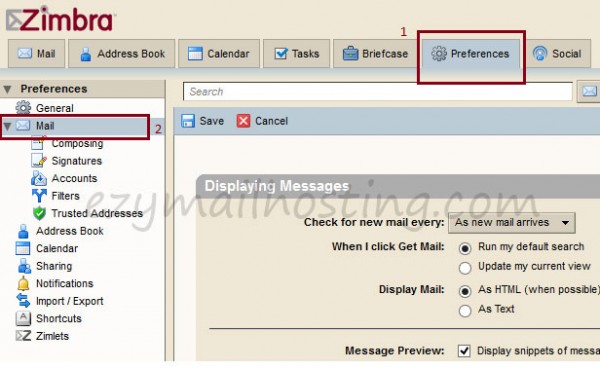
- Click Preferences, then click Mail in the pane on the right.
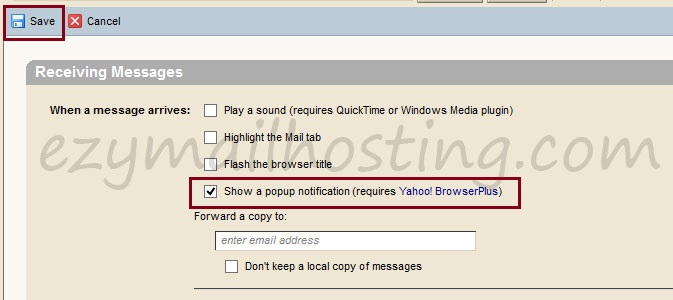
- Scroll down to Reviving Messages, select “Show a popup notification (requires Yahoo! BrowserPlus)”, then click Save.
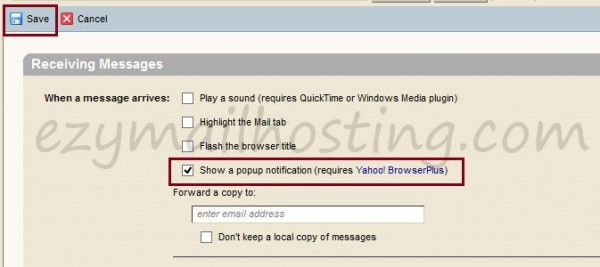
- After enabling email notifications, install Yahoo! Browser Plus to add the required browser capability (click here).
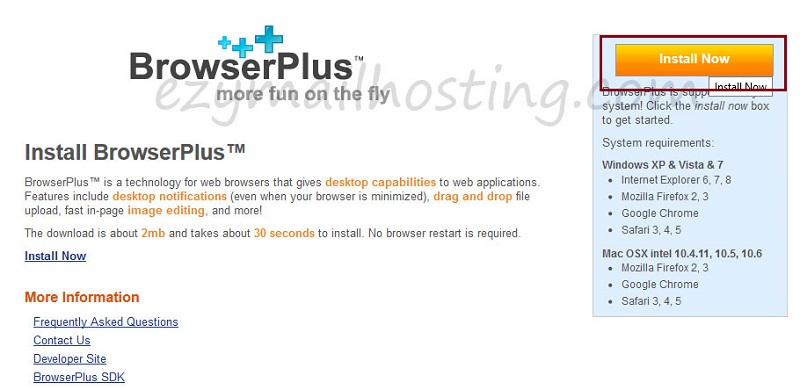
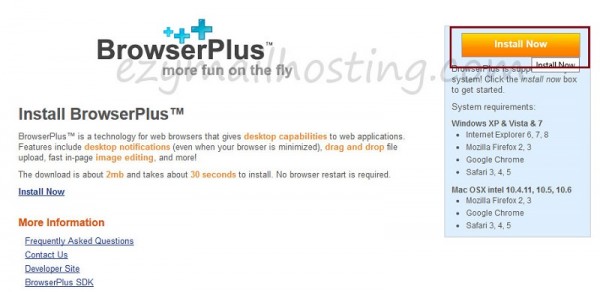
- On the Install BrowserPlus™ page, click “Install Now”.
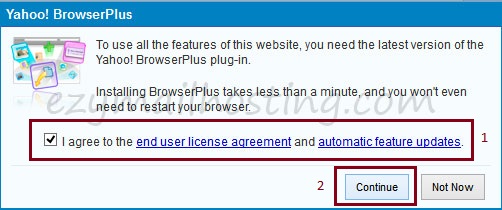
- After clicking “Install Now”, accept the license agreement by selecting “I accept …” and clicking Continues.
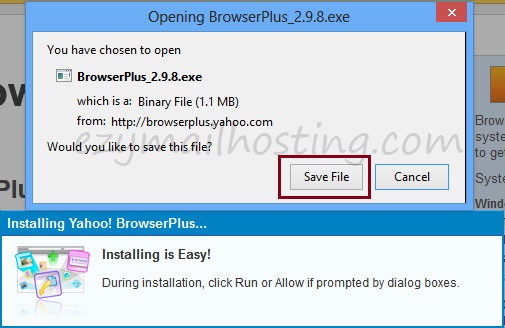
- Click Save file to save the Yahoo! browser plus installer.
- Double-click the downloaded file and select “I have read …” to accept the license agreement again.
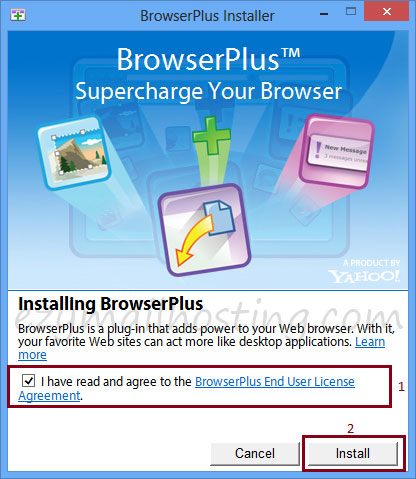
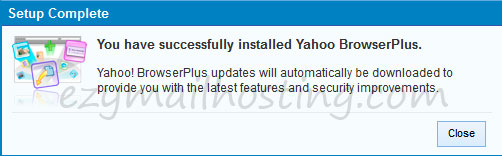
- Wait for installation to finish. The window below appears when it is complete.
- When email arrives, browser plus then asks you to download and activate the “notification engine for browser plus”.
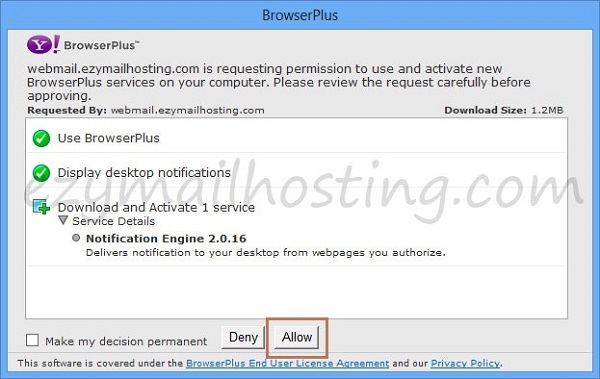
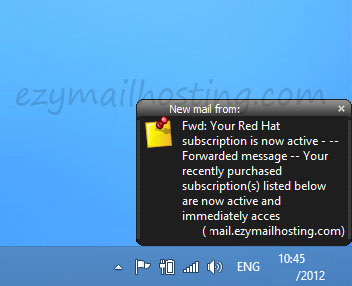
- After activating the “notification engine for browser plus”, incoming email triggers an email notification in the lower-right corner, as shown.