Sync Email, Calendar, Contact between iPhone, iPad, and Zimbra
An iPhone, iPad, or iPod touch can be configured to work fully with Zimbra Mail. It can sync email, Contact (contacts), and Calendar (appointments) from Zimbra mail without installing any additional software on the iPhone, iPad, or iPod touch. ** For Android, see Sync Calendar, Contact, and Email on Android with Zimbra Mail Server. To configure an iPhone, iPad, or iPod touch to work fully with Zimbra Mail:
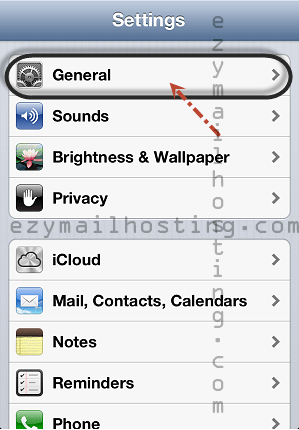
- Select Settings > Mail, Contacts, Calendars.
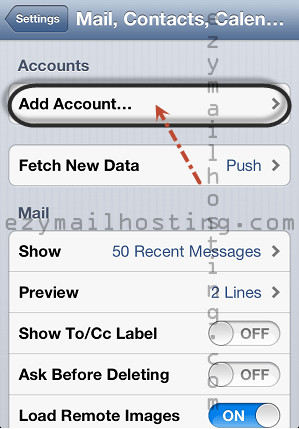
- Select Add Account.
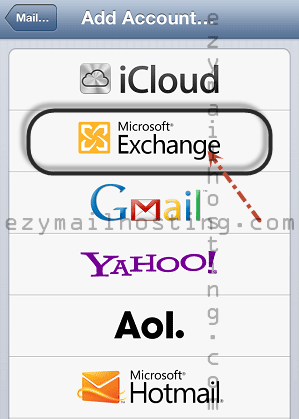
- Select Microsoft Exchange.
- Enter the email address, password, and description, then select Next.
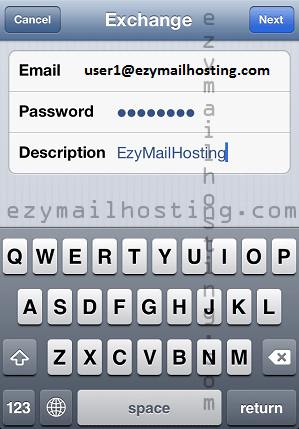
- Select Next at the top right of the screen. The iPhone or iPad will try to find the settings needed to configure your account. Go to step 8 if the iPhone or iPad finds your settings.
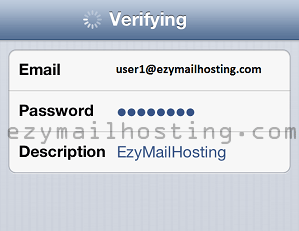
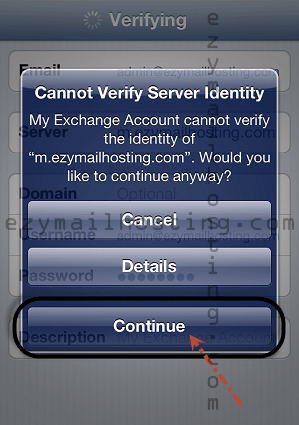
- If the iPhone or iPad cannot find your settings, select Continue.
- Enter ezymailhosting.com as the Domain and fill in Email, Username, and Password. Enter your full email address in both Email and Username (for example, [email protected]). Enter m.ezymailhosting.com in Server, then select Next.
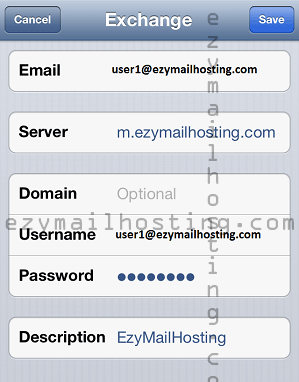
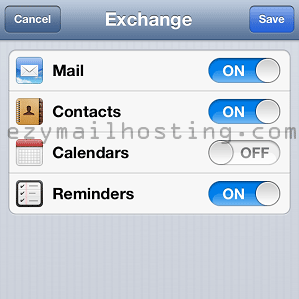
- Select the types of data you want to synchronize between your account and your device, then select Save.