Upgrade LG Optimus One (P500) to CyanogenMod 7 Gingerbread (Android 2.3.3)
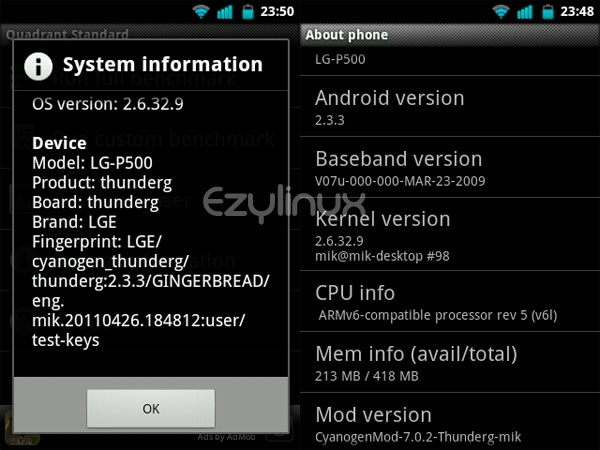 Many Optimus One users have already had a taste of Gingerbread. For those who have not yet started and want to upgrade without waiting for LG’s official ROM, this article should be useful. We will upgrade the LG Optimus One (P500) to Android 2.3 (Gingerbread).
What to prepare before upgrading to Gingerbread (Android 2.3)
Many Optimus One users have already had a taste of Gingerbread. For those who have not yet started and want to upgrade without waiting for LG’s official ROM, this article should be useful. We will upgrade the LG Optimus One (P500) to Android 2.3 (Gingerbread).
What to prepare before upgrading to Gingerbread (Android 2.3)
- An Optimus One phone
- Android 2.3 Gingerbread Cyanogenmod 7 from XDA-Developers
- Google Apps for CyanogenMod 7 from CyanogenMod.com
- flash_image.zip and a recovery for Optimus One from Android Forums
- Super OneClick —> from XDA-Developers
- An ADB driver. If you do not have one, download it from (Mobile Geeky).
- LG Driver —> Download
Once the programs and drivers are ready, here is a brief overview of what we will do so that you can keep track of each stage. :)
- First, root the Optimus One using Super Onclick.
- Install recovery menu
- Reboot into recovery mode, then install Cyanogenmod 7 and Google Apps.
Warning: upgrading to CyanogenMod 7 may void your phone’s warranty or brick it. If you are unsure, do not proceed. If you do proceed, back up the old ROM first. Here are the detailed steps for upgrading to Android 2.3 (Gingerbread).
-
Open SuperOneclick.
-
[On the phone] Select menu -> setting -> Applications -> Development -> USB debuging.
-
Once the phone is in USB debuging mode, click root in Super OneClick.
-
Restart the Optimus One.
-
Copy flash_image and the recovery image from the downloaded zip files to the SD card.
-
Also copy the Android 2.3 Gingerbread Cyanogenmod 7 ROM to the SD card (without extracting the zip).
-
[On the computer] Open command mode.
-
Type \PATH\of\SuperOneClick\adb.exe shell. For example, if SuperOneClick is stored in c:, type \SuperOneClick\adb.exe shell.
-
Become root using su (the prompt must be #).
-
Install the recovery menu with the following commands.
# mount -o remount,rw -t yaffs2 /dev/block/mtdblock1 /system # cat /sdcard/flash_image > /system/bin/flash_image # chmod 755 /system/bin/flash_image # mv /system/etc/install-recovery.sh /system/etc/install-recovery.sh.bak # mount -o remount,ro -t yaffs2 /dev/block/mtdblock1 /system # flash_image recovery /sdcard/recovery-RA-GNM-thunderg-1.1.0.img # reboot recovery -
[On the phone] Turn it off and back on into recovery mode by holding Vol down + Home + Power together when powering on. ** Controls: Vol up moves up, Vol down moves down, Menu confirms, and Back cancels/goes back.
-
In recovery mode, select Backup/Restore -> Backup if you want to make a backup.
-
Wait… until the backup finishes.
-
Select Wipe Data/Factory Reset and Cache wipe.
-
Install Cyanogenmod by selecting Flash zip from sdcard -> choose zip from sdcard -> select the downloaded Cyanogenmod file.
-
Also install Google Apps by selecting Flash zip from sdcard -> choose zip from sdcard -> gapp-gb-xxxxx.zip.
-
Wait…
-
Finally, run Wipe Data/Factory Reset and Cache wipe again to prevent a boot loop at the Cyanogenmod logo.
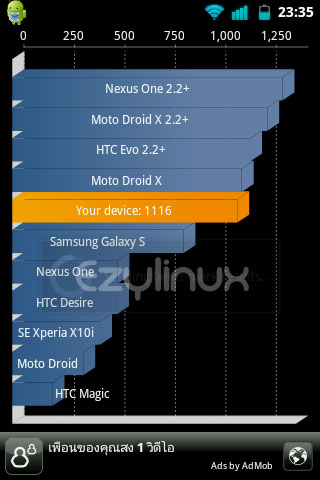
After installing, I ran a benchmark and found the results satisfactory. Operation was also much smoother than before.
 Thanks: Mobile Geeky
Coming next: Upgrade Motorola Defy to CyanogenMod 7 Gingerbread (Android 2.3.5) It is still being tested and is not fully functional, so I have not posted the procedure yet. :)
Thanks: Mobile Geeky
Coming next: Upgrade Motorola Defy to CyanogenMod 7 Gingerbread (Android 2.3.5) It is still being tested and is not fully functional, so I have not posted the procedure yet. :)

Archived comments (17)
Preserved from the original blog for reference.
Connect the phone to the computer and try enabling USB debugging.
Pictures of every step would make it easier. When I click root in SuperOneClick, I cannot tell whether rooting has finished. I just guessed when it told me to Diseble Usb debugging. Did it actually root successfully?
Have you installed the ADB driver?
Yes, I have.
Do you have instructions for going back to the original manufacturer ROM? I want to sell this phone and buy a larger model.
I want to restore the manufacturer ROM, but I do not have it. Please advise.
I do not have the manufacturer ROM. If you backed up your ROM, though, you can restore that backup.
Look for a release marked stable so that you avoid problems during use.
You can see an overview of rooting at http://www.ezylinux.com/android/%E0%B8%A7%E0%B8%B4%E0%B8%98%E0%B8%B5-root-motorola-defy-%E0%B8%94%E0%B9%89%E0%B8%A7%E0%B8%A2-superoneclick-for-2-1/
One more thing: I downloaded the Android 2.3 Gingerbread Cyanogenmod 7 ROM, but the filename is gb-2.3.1-alpha2-p500.zip. Is it the same file?
First find the path where SuperOneClick is stored, then use cd to go there. For example, if SuperOneClick is on drive C, use \SuperOneClicl\adb.exe shell. NDrive will definitely be gone, because this is not LG's official ROM.
It shows error device not found when I enter \superoneclick\adb.exe shell.
I tried it, but it cannot find the path. Does the phone need to stay connected to the computer throughout all these steps? Also, will NDrive disappear after upgrading? My computer runs Win7; can I upgrade without problems?
Click start (the Windows logo at the lower left) -> all programs -> accessories -> command prompt, or click start (the Windows logo at the lower left) -> type cmd in the search box.
After copying the files in steps 6 and 7, how do I enter Command mode in step 8? My computer runs Win7; will it work?
How do I install Thai language support?
Thai language support is already included. For a keyboard, try searching the Market.