Install CyanogenMod 7 Gingerbread (Android 2.3.5) on Motorola Defy
 After using Motorola Defy with CyanogenMod 7 Gingerbread for a few months, today I am sharing how to install CyanogenMod 7 (Android 2.3.5) Gingerbread on Motorola Defy, as promised in Upgrade LG Optimus One (P500) to CyanogenMod 7 Gingerbread (Android 2.3.3). Let’s look at the procedure and what you need.
What to prepare before upgrading to Gingerbread (Android 2.3.5):
After using Motorola Defy with CyanogenMod 7 Gingerbread for a few months, today I am sharing how to install CyanogenMod 7 (Android 2.3.5) Gingerbread on Motorola Defy, as promised in Upgrade LG Optimus One (P500) to CyanogenMod 7 Gingerbread (Android 2.3.3). Let’s look at the procedure and what you need.
What to prepare before upgrading to Gingerbread (Android 2.3.5):
- A Motorola Defy.
- Android 2.3.5 Gingerbread Cyanogenmod 7 from XDA-Developers
- Google Apps for CyanogenMod 7 from CyanogenMod.com
- SuperOneClick v1.7 [Link]
- If you have not updated to Froyo, upgrade first. Download the Froyo .sbf file here.
- For the upgrade mentioned in item 4, you need RSD Lite. Download it from this link.
Once everything is ready, here is an overview so you can keep track of which stage you are at. :)
- If you have not upgraded to Froyo, do so first using RSD Lite.
- Once the device is on Froyo, root it.
- Install 2init boot
- Copy CyanogenMod 7 and Google Apps to the SD card.
- Install CyanogenMod 7 and Google Apps.
Detailed steps for upgrading Motorola Defy to CyanogenMod 7: **If you already have Froyo, skip to step 5.
- [On the computer] Install and open RSD Lite.
- [On the Defy] Turn the device off. Once it is fully off, press Power and Volume Up together to enter Flash ROM mode.
- [On the computer] RSD Lite should show the device status as Connected. Browse to the .sbf file and click start.
- Wait for it to finish.
- [On the Defy] After upgrading to Froyo, enable USB debugging mode under settings -> Applications -> Development -> and check USB debugging.
- [On the computer] Extract SuperOneClick, open it, and click Root.
- Wait for rooting to finish. (For detailed rooting steps, see How to Root Motorola Defy with SuperOneClick.)
- [On the Defy] Open Market, search for Defy 2ndinit, and install it.
- Open Defy 2ndinit and click install 2ndInit Recovery.
- After 2ndInit Recovery installs, a green light appears at the top. Disable USB debugging mode under settings -> Applications -> Development -> by unchecking USB debugging.
- Reboot the device twice.
- Connect the Motorola Defy to the computer with a USB cable and enable “Memory card access” mode.
- [On the computer] Copy CyanogenMod 7 and Google Apps to the SD card.
- [On the Defy] Reboot. When the blue light appears at the top while the Motorola logo is displayed, immediately press Volume Down to enter Bootmenu.
- In Bootmenu, select “Set Default Bootmode” and then [2ND INIT BOOT].
- Then select “[Custom Recovery] start”.
- To make a backup, select “Backup and restore” -> Backup.
- Then select “wipe cache partition” and “wipe data/factory reset”.
- Install CyanogenMod 7 and Google Apps by selecting “install zip from sdcard” -> “choose zip from sdcard” -> CM7 “cm7.1.0-RC1-jordan-signed.zip”.
- After CyanogenMod 7 installs, select “choose zip from sdcard” -> “gapps-gb-20110613-signed.zip” to install Google Apps.
- Once installation finishes, select “+++++Go Back++++++” and “reboot your system now”.
- You can now enjoy CyanogenMod 7.
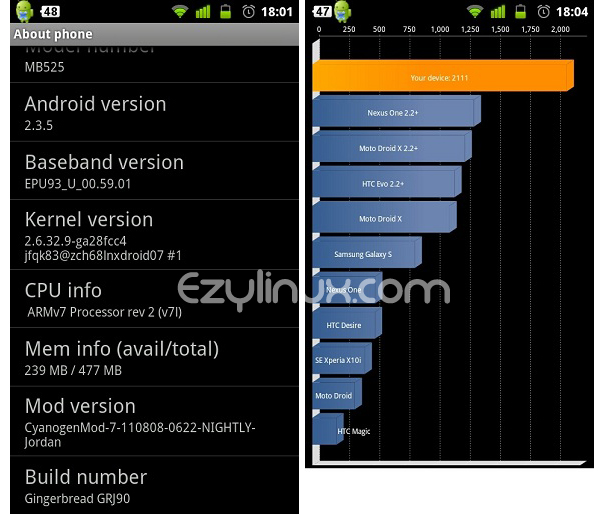
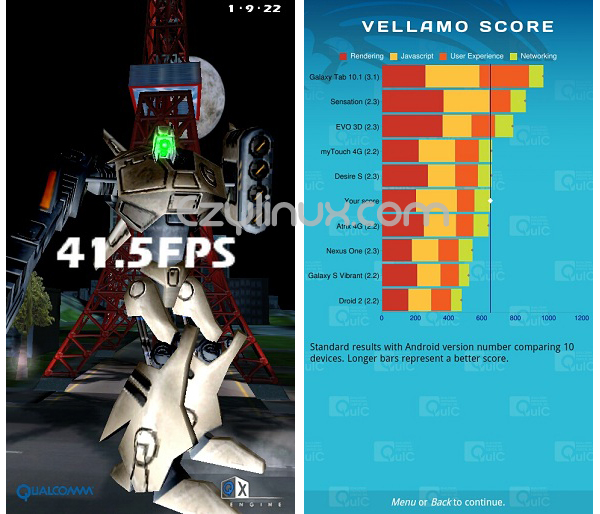
Below are the benchmark results for CyanogenMod 7 Gingerbread (Android 2.3.5) on Motorola Defy.
 Thanks to Mobile Geeky for the information in Install Android 2.3.4 Gingerbread CyanogenMod 7 on Motorola Defy.

Archived comments (8)
Preserved from the original blog for reference.
I succeeded, but why can I not use DTAC 3G?
Have you activated a 3G package?
I reached step 10 and ran into a problem: it keeps rebooting. Also, a call came in while the green light was on, and then the green light went off. Now the phone will not turn on. Please advise.
Start again from step 1. I think the phone may be bricked.
At the bottom of the first post, under F.A.Q Latest Google APPS means Google Apps. Download RC1.5 is the stable release. Nightly Builds is the nightly release.
Please do not call me stupid, but where do I download it? http://forum.xda-developers.com/showthread.php?t=1033654 I cannot find a download link.
I have a question about Install file Zip from SD Card. Does DEFY need a program installed first? I cannot find defy 2nd init install in the Market. Thank you very much.
Try this link. http://forum.xda-developers.com/showthread.php?t=1032212