How to install Raspberry Pi OS to NVMe storage by rpi-imager cli
I got a new case that lets me add an NVMe M.2 drive to the Raspberry Pi. The machine runs in console mode, with no mouse or keyboard available, and most online guides use the GUI desktop. Here is how to put Raspberry Pi OS on NVMe storage. The steps are:
- Download Raspberry Pi OS from the link below.
https://www.raspberrypi.com/software/operating-systems/#raspberry-pi-os-64-bitI selected 2024-07-04-raspios-bookworm-arm64.img.xz and downloaded it with wget, as shown:
wget https://downloads.raspberrypi.com/raspios_arm64/images/raspios_arm64-2024-07-04/2024-07-04-raspios-bookworm-arm64.img.xz
- Check the NVMe device name with fdisk so you can specify the target device for writing the OS.
fdisk -l
Many disk devices may appear. Look for a name beginning with nvme, as shown:
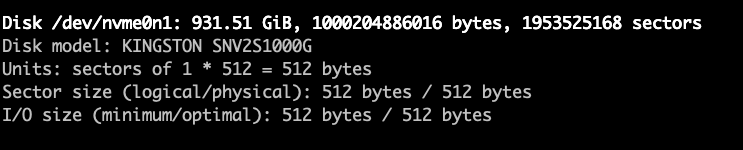
- Once you have the disk name, run rpi-imager as follows.
rpi-imager --cli <image file to write> <destination drive device>For example:
rpi-imager --cli 2024-07-04-raspios-bookworm-arm64.img.xz /dev/nvme0n1</destination>
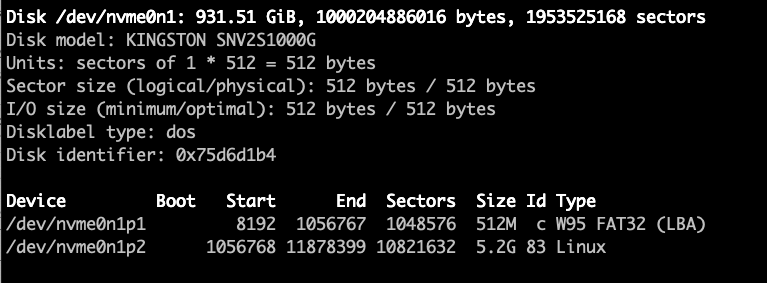
After rpi-imager finishes, use fdisk to check the NVMe drive. Its partition table should have changed as follows:
- Once the disk is ready, change the boot order so NVMe is first by running:
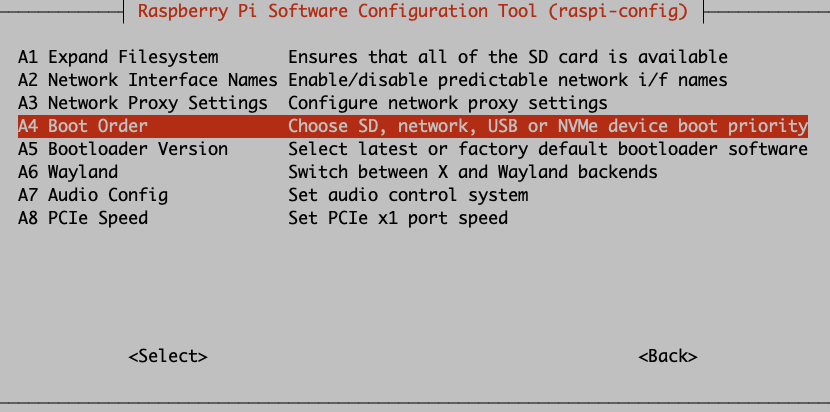
rasp-configSelect Advanced Options.
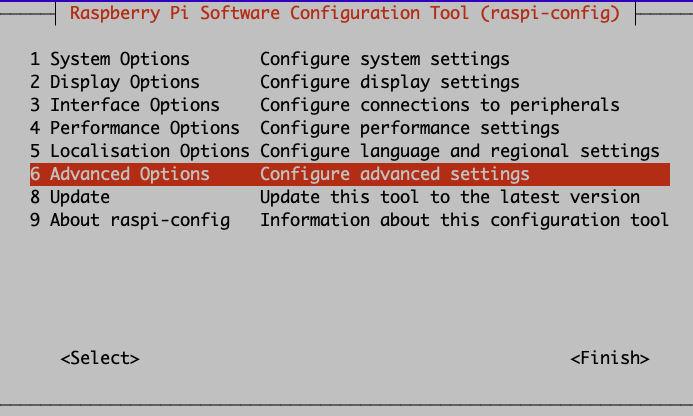
Select Boot Order.
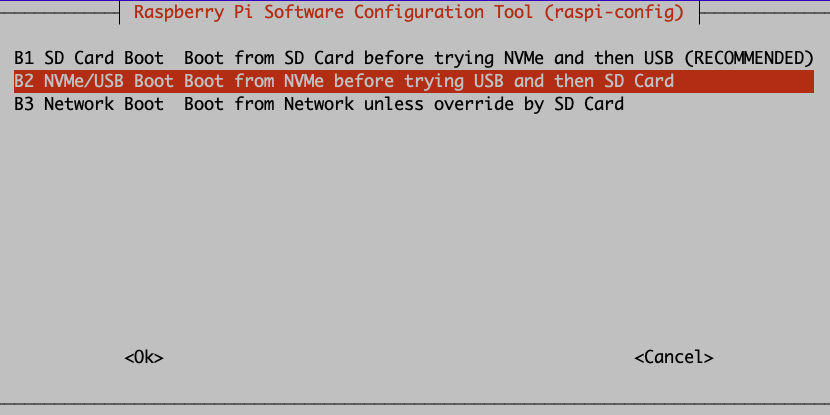
Select B2 NVMe/USB Boot and OK.
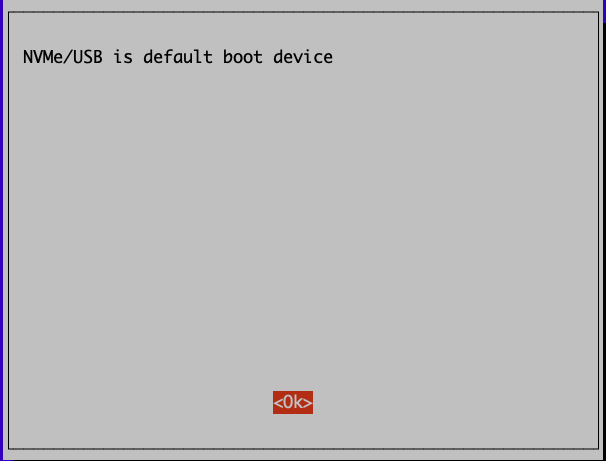
The system reports that NVMe/USB is now the default boot option.
Reboot to start using NVMe.
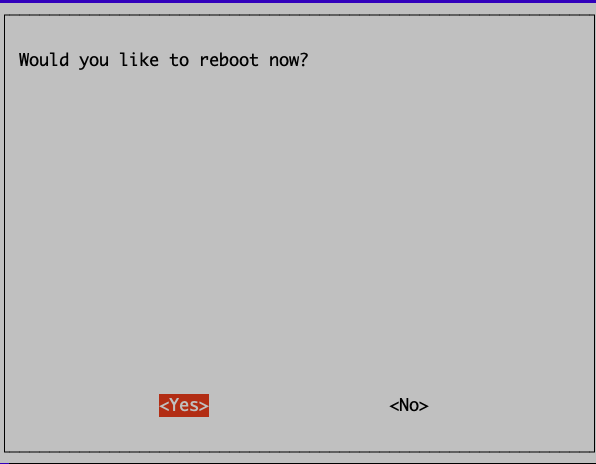
- Finsih and Reboot