Multitouch configuration for Apple Magic TrackPad and Ubuntu 10.10 (Maverick)
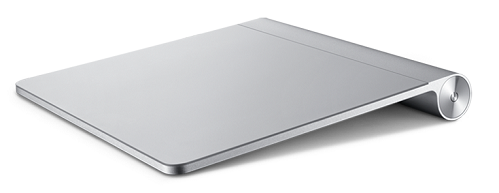 Apple Magic TrackPad is an interesting device that can be more flexible than an ordinary mouse, depending on the support provided by the OS and driver.
On Windows, you can use Magic TrackPad by installing bootcamp 3.0, but functionality is limited, such as support for at most two fingers. Apple has not released a Linux driver, but do not be disappointed: Ubuntu has announced Magic TrackPad support too, with even more flexibility than Windows. \o/
This article explains how to install and use Magic TrackPad with Ubuntu 10.10 Maverick. The simple steps are divided into two parts:
Connecting Ubuntu to Magic TrackPad over Bluetooth
Apple Magic TrackPad is an interesting device that can be more flexible than an ordinary mouse, depending on the support provided by the OS and driver.
On Windows, you can use Magic TrackPad by installing bootcamp 3.0, but functionality is limited, such as support for at most two fingers. Apple has not released a Linux driver, but do not be disappointed: Ubuntu has announced Magic TrackPad support too, with even more flexibility than Windows. \o/
This article explains how to install and use Magic TrackPad with Ubuntu 10.10 Maverick. The simple steps are divided into two parts:
Connecting Ubuntu to Magic TrackPad over Bluetooth
- Hold the Magic TrackPad power button until its light flashes to make it discoverable. If Ubuntu detects it immediately, the dialog shown in step 6 appears.
- In Ubuntu, click the Bluetooth icon and choose Setup new device.
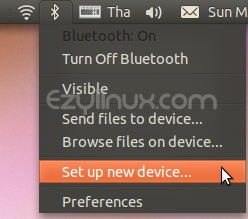
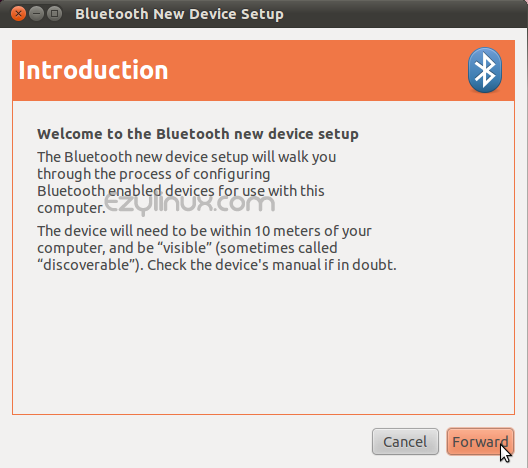
- The Bluetooth new device setup window appears as shown. Click Forward.
- The program searches for available Bluetooth devices. Select Apple Wireless Trackpad when it appears.
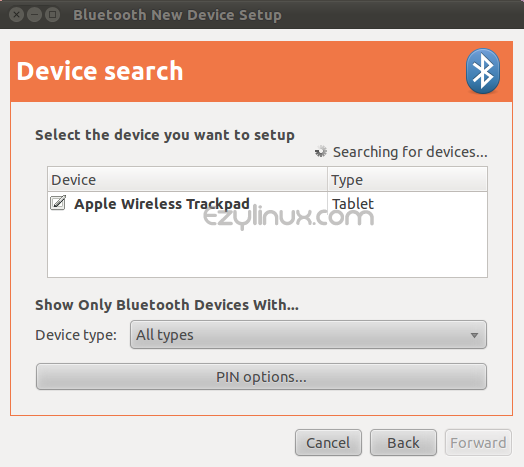
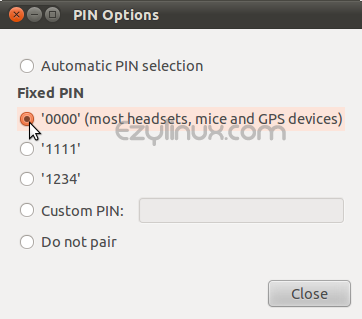
- Click PIN Option and select 0000 as shown. (You can skip step 6.)
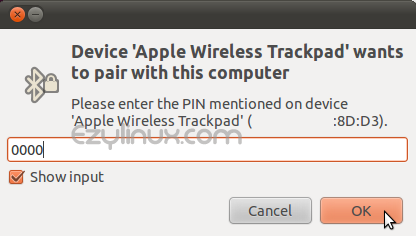
- Alternatively, skip PIN Option and click Forward. When prompted for a PIN, enter 0000 (four zeros). Use this step if you skipped step 5 or Ubuntu detected Apple Wireless Trackpad automatically.
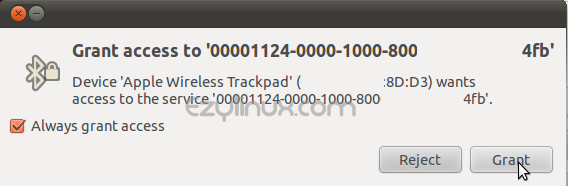
- After entering the PIN, the program asks to grant access. Choose Grant.
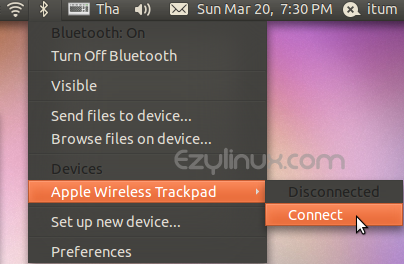
- Finally, connect the computer and Magic TrackPad by clicking Bluetooth -> Apple Wireless Tackpad -> connect.
Configuring Multi-touch on Ubuntu
-
Install the bluez-compat package with:
tum@tum:~$ sudo apt-get install bluez-compat -
Add the utouch repository and install ginn to enable multi-touch, using:
tum@tum:~$ sudo apt-add-repository ppa:utouch-team/utouch tum@tum:~$ sudo apt-get update tum@tum:~$ sudo apt-get install ginn -
Download wishes.xml from Wiki.Ubuntu.com and place it in /etc/ginn/ using:
tum@tum:~$ sudo mv wishes.xml /etc/ginn/ -
Download Ginn Wrapper, a script for running Ginn. Since the program is not yet stable, Ginn Wrapper restarts ginn if it crashes.
Installation is complete. You can now try using Magic TrackPad with Ubuntu.
